Using Agents
Introduction
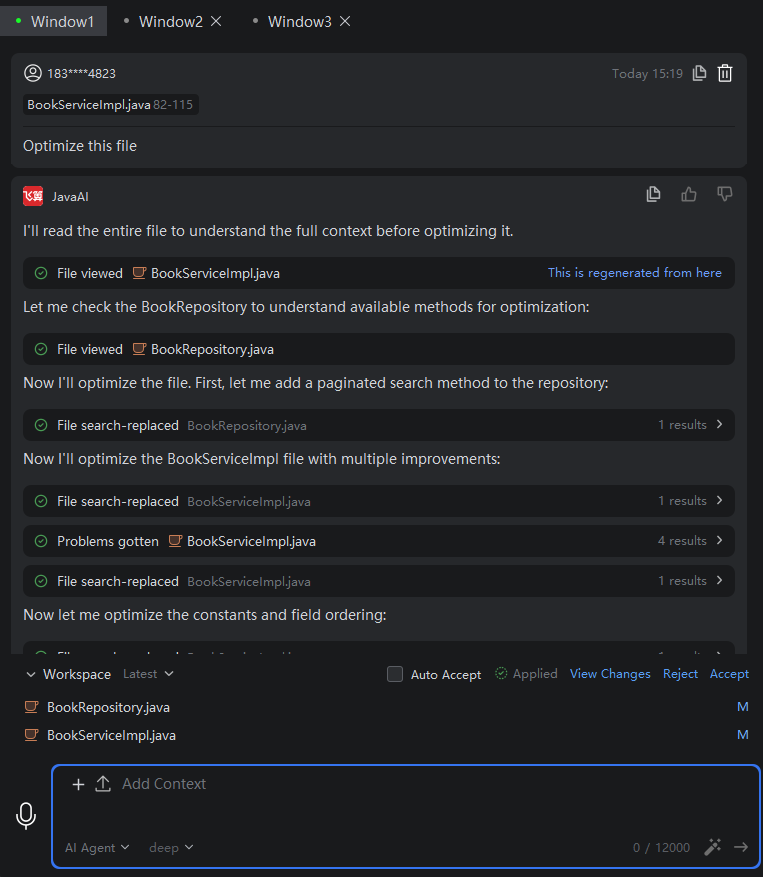
Agents have capabilities such as automatic execution, acquiring current project structure, and using corresponding tool calls. You only need to describe tasks, and the agent can "understand" your intentions. It reads your current project directory structure, combines tools such as project retrieval, file editing, file viewing, and terminal operations, automatically uses corresponding tools to complete your programming tasks, comprehensively fitting the developer's workflow and actual scenarios. Without needing to select associated contexts, the agent will automatically identify corresponding files and use tools to complete your tasks.
Project-Level Changes
Based on the developer's task description, it can independently decompose tasks, generate corresponding requirement code after task decomposition, simultaneously retrieve code files related to requirements in the current project, and combine new requirement content for modification.
Project Auto-Sensing
According to the developer's task description, it can automatically retrieve frameworks, technology stacks used in the current project, required code files, compilation failure error information, and other project internal information. Without manually adding project context, the agent will perfectly integrate new requirements into the current project, and will optimize and modify code files based on acquired compilation failure error information.
Tool Usage
The agent provides more than ten programming tools for autonomous decision-making use, including file search, file reading, directory reading, semantic symbol retrieval within the project, file modification, error acquisition, terminal execution, etc. During the process of using tools, the agent does not require developer confirmation or intervention, and can make autonomous decisions and execute. You can also let the agent execute which tool to complete what demand by describing.
Terminal Command Execution
When the agent identifies your needs, it will determine whether terminal commands need to be executed based on context. To ensure operational safety, relevant commands need to be confirmed by the developer before execution. If execution is needed, please click the execute button, and the agent will send the command to the IDE's Terminal window for running; if not needed, you can choose to cancel and skip the command.
You can also add which commands allow the agent to execute directly without your confirmation in settings. If there are multiple commands, they need to be separated by English commas.
Example Images