Enable Smart Analysis
Introduction
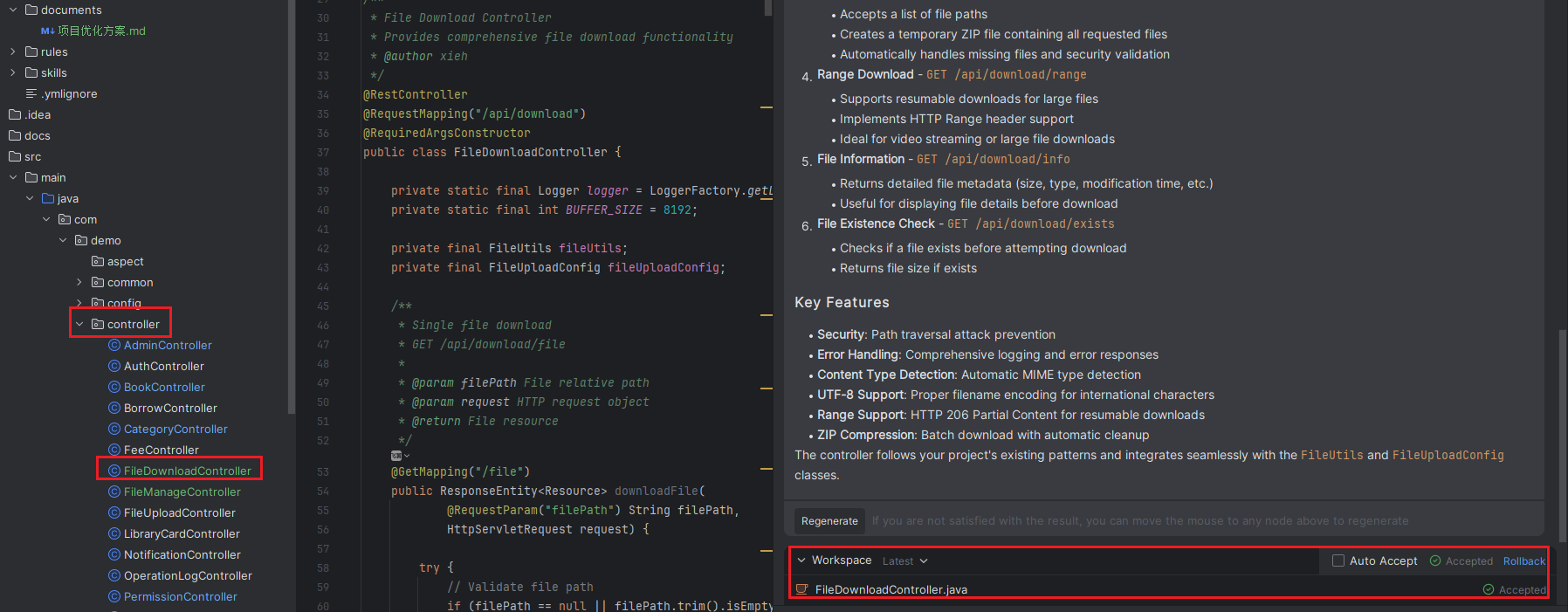
When you open a project, the system will automatically launch the Smart Analysis feature to deeply parse the file contents of the entire project. During this process, you can monitor the analysis progress in real-time via the input box. Smart Analysis not only performs semantic indexing on all files in the current project but also ensures retrieval accuracy and depth. Once the analysis is complete, users can submit requests or ask questions in the Smart Chat using the Agent, JavaChat, and Smart Q&A features. These features rely on a comprehensive understanding of the current project's code context, providing answers and suggestions that are highly aligned with the project's actual situation and offering information that better fits project requirements, thereby providing strong support and improving efficiency for your development work.
| Sequence | Function | Example | Pros & Cons |
|---|---|---|---|
| 1 | Merged into the corresponding directory | For example, if a new Usercontroller file is created, it will be merged into the feisuanyz.controller directory of the current project. | More flexible, better fits the current project structure |
| 2 | Merged into the same file | For example, if a Usercontroller.java file already exists, the new code content will be merged into the Usercontroller.java file. | More convenient, better fits project usage |
| Sequence | Function | Example | Pros & Cons |
|---|---|---|---|
| 1 | Merged into a specified directory | For example, if the Usercontroller file is selected, it will be merged into the specified com.example.controller directory. | File location is fixed, less practical, requires manual file migration |
| 2 | Create a new file to store | For example, if a Usercontroller.java file already exists, the new code content will be created and stored in a new Usercontroller1.java file. | Inconsistent, redundant |
Enable Smart Analysis Master Switch
- Click "Settings > Advanced Settings", and check the box to enable Smart Analysis.
Note: You can freely adjust the Smart Analysis speed based on your preferences. A slower analysis speed consumes less memory. If you experience high memory usage during operation, you can switch the analysis speed to "Slow". Additionally, you can change the storage directory for Smart Analysis data. Simply click the directory box to select your preferred location.

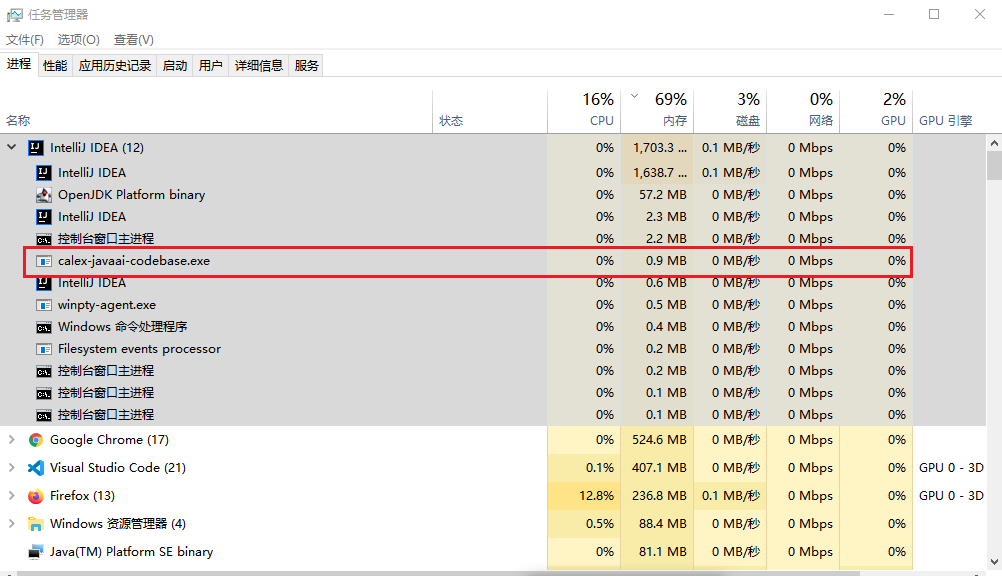
- Smart Analysis will start the corresponding service. If you need to close the service, please open the "Task Manager" on your computer, select "calex-javaai-codebase", and end the process.
Enable Project-Level Smart Analysis
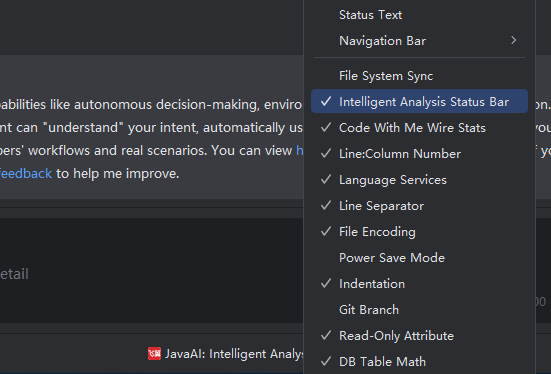
- Open the plugin, and "Smart Analysis" will be displayed in the status bar. Click the button to enable project-level Smart Analysis. (In a multi-window environment with different projects, you can use this button to choose whether to enable Smart Analysis.)

Using Smart Analysis
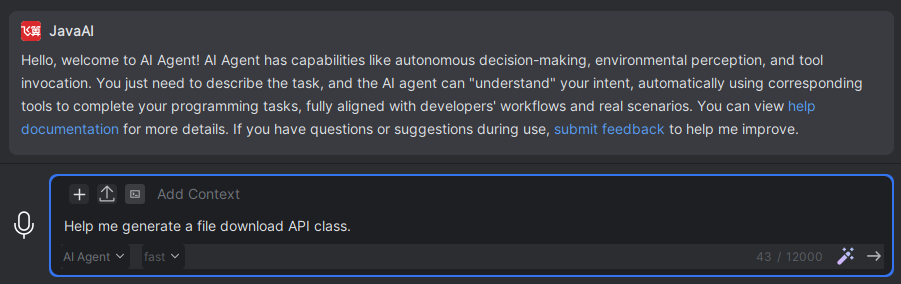
- Enter your requirement or task in the input box.
- The model will read the information and content of the current project, collect relevant information, and complete the required task.
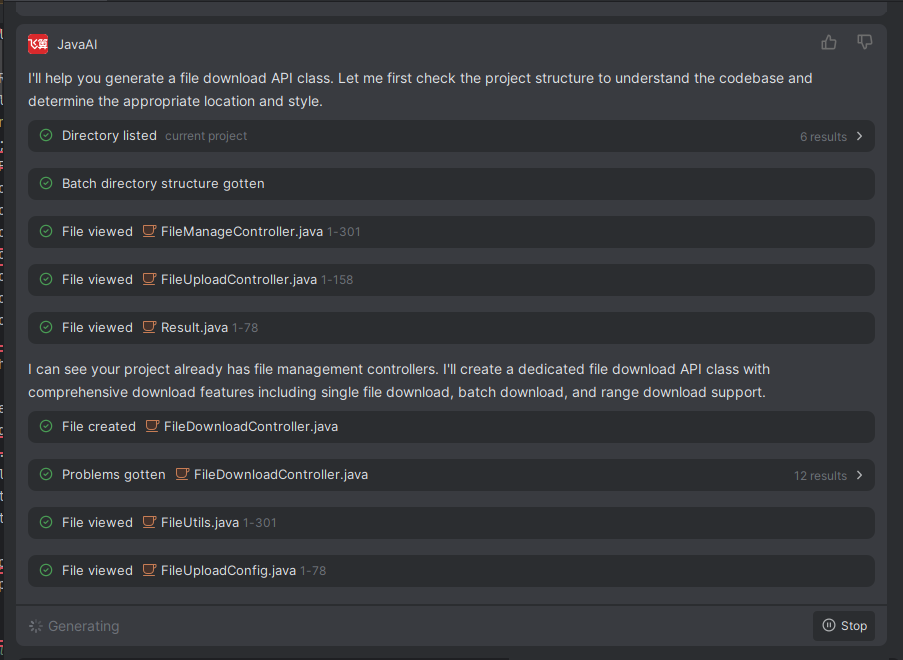
- After the task is completed, the new code files will be merged into the corresponding directory of the current project, or the original code files will be modified.