Setting up Maven Environment
Introduction
After generating Maven project source code through natural language, you must complete the Maven environment configuration in advance to start the project properly. This tutorial will detail the complete process of configuring a Maven development environment from scratch, helping you quickly bridge the last mile of AI-generated code.
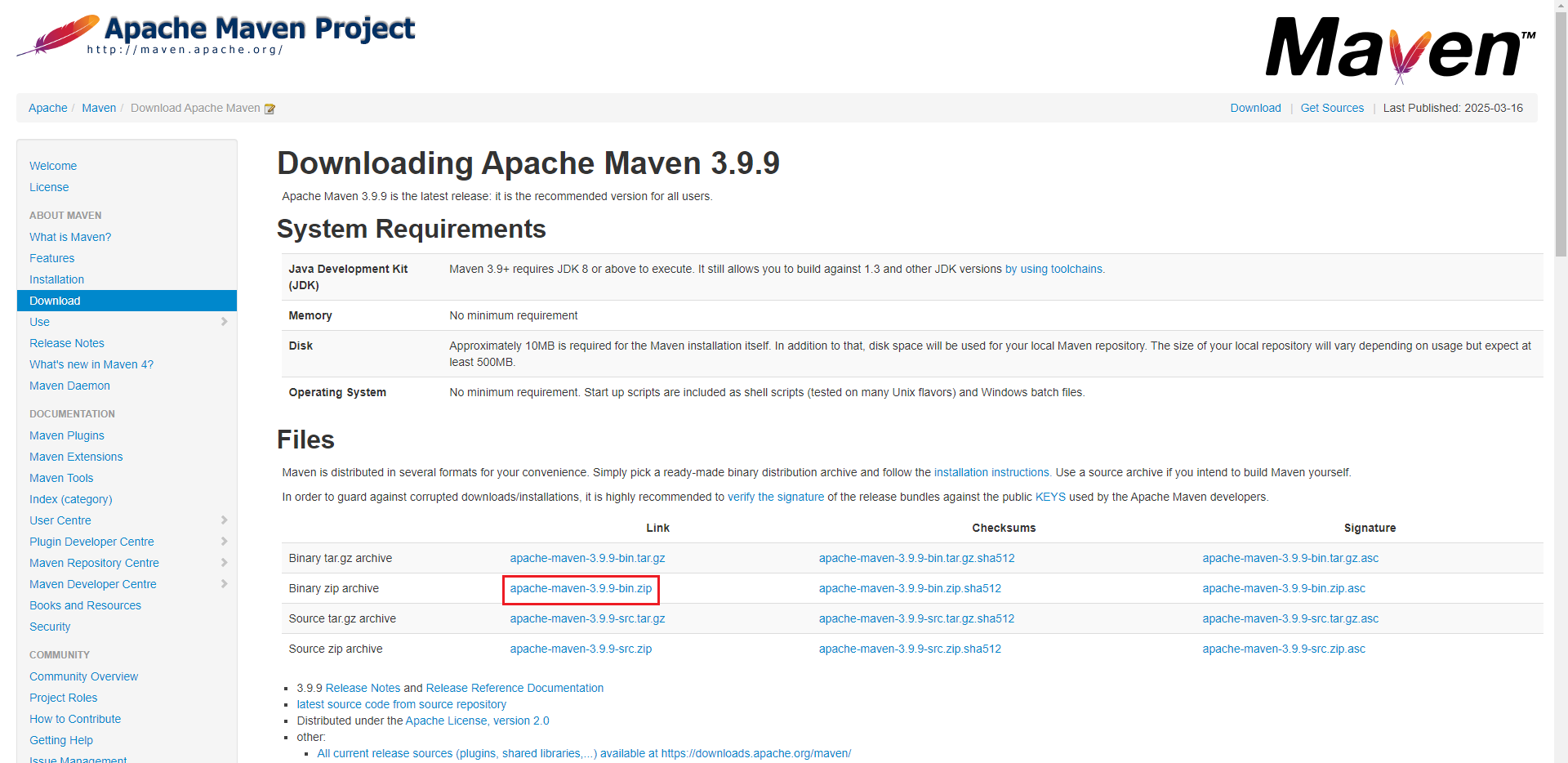
Download Installation Package
- Visit the official website address (https://maven.apache.org/download.cgi), select the latest stable version (recommended 3.9.x+), download the binary package corresponding to your system:
- Windows:
apache-maven-3.x.x-bin.zip - Unix systems:
apache-maven-3.x.x-bin.tar.gz
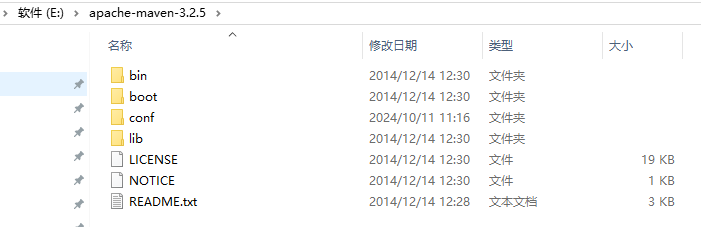
Extract Installation
- Extract to the specified directory (example path) E:\apache-maven-3.x.x
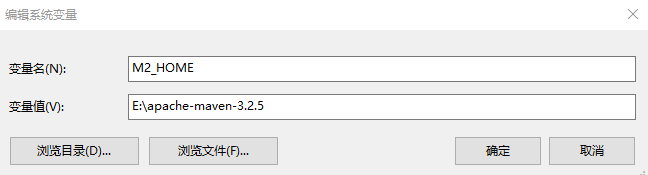
Configure Environment Variables
Create new variable: M2_HOME, variable value: Maven extraction directory, such as (E:\apache-maven-3.x.x)
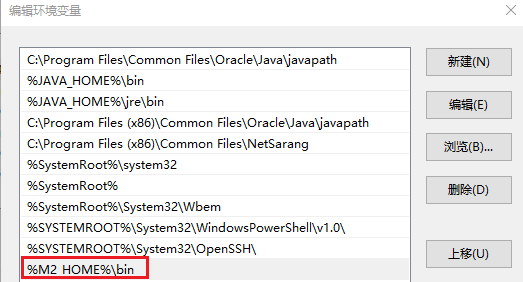
Edit path, copy this path: %M2_HOME%\bin, paste it in.
Verify Configuration
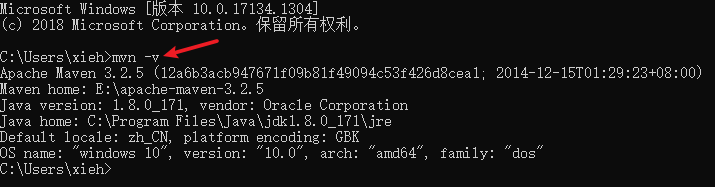
- Open command cmd, enter mvn -v, display version number means environment variable configuration is successful.
Create Local Repository
- Open the disk where Maven is extracted, create a new empty folder named repository.

Configure Maven's Settings File
Configure local repository, open Maven directory, find "conf > settings.xml", edit settings.xml file.

Find localRepository tag, modify the local repository path.

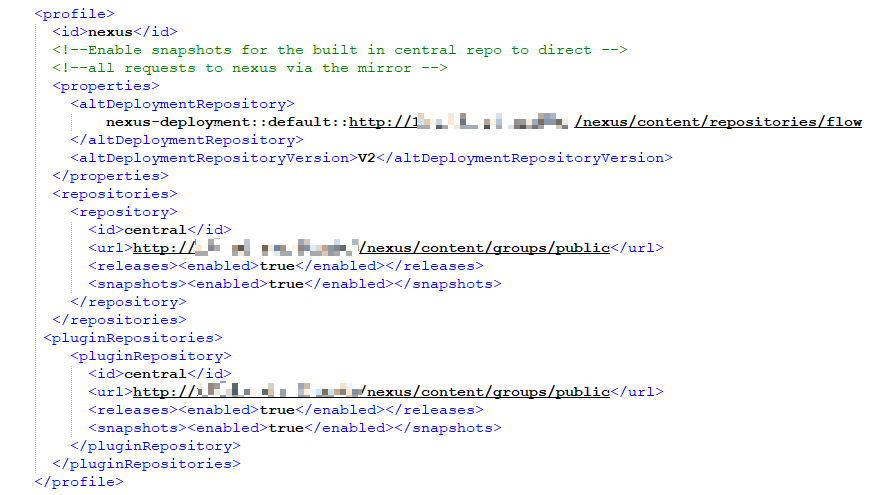
Find profile tag, configure remote repository address, and dependency package address. If remote repository address requires account password, then you need to perform step 4
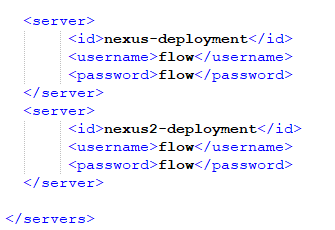
Find server tag, configure id, account, password
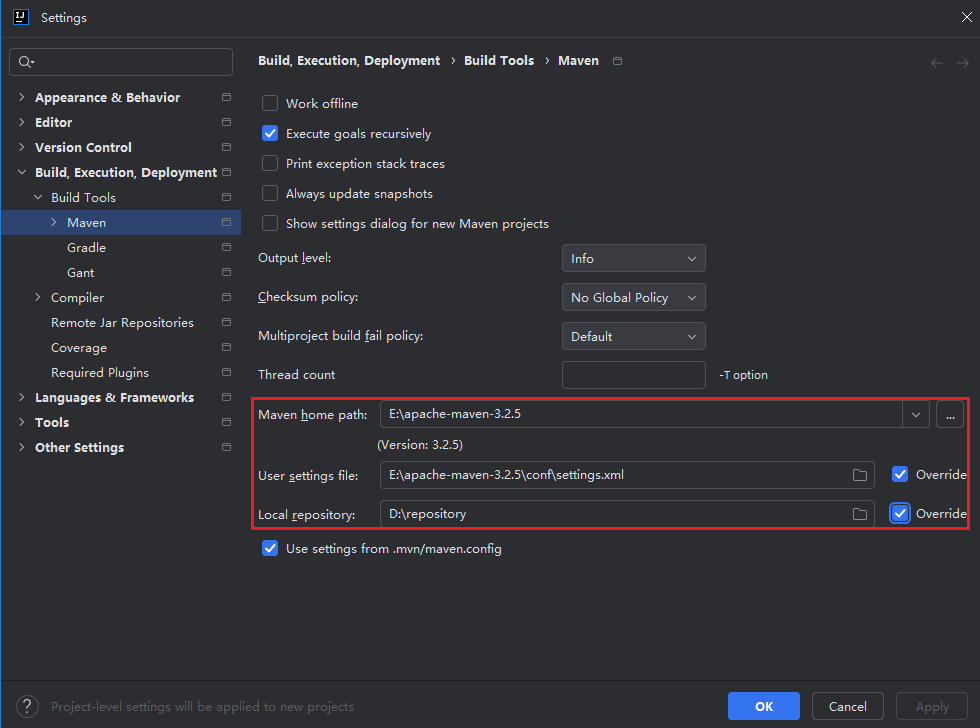
Set Default Maven Path in IDEA
Select "File > New Projects Setup > Settings for New Projects".
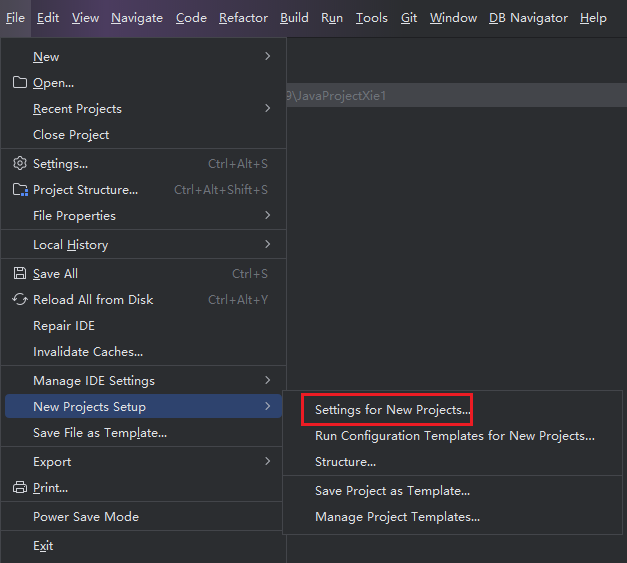
Then select "Maven", choose specified Maven home path, User settings file, Local repository.