
Inline Suggestion Prediction
Introduction
Inline suggestion prediction dynamically predicts the code modifications needed based on the current cursor position and related context. You can quickly judge whether the predicted content meets your expectations—accept it directly if it does, or reject it if not—enabling more efficient development.
Enable Inline Suggestion Prediction
In Advanced Settings, check "Inline Suggestion Prediction". Once enabled, you can configure the recommendation display mode and set a shortcut key to trigger inline suggestion prediction. Later, you can simply use the shortcut wherever you need this feature.
Set the recommendation display mode. Three options are available: Inline, Side by Side, and Auto.
- When Inline or Auto is selected, an additional Code Movement configuration appears.
- When Side by Side is selected, no such option appears.
The Code Movement setting controls whether the editor shifts existing lines to make space for floating suggestions.
- Auto (default): Automatically chooses between Inline and Side by Side based on the scenario. If the combined pixel width of the changed code and the suggestion exceeds the visible editor width, it displays as Inline; otherwise, it uses Side by Side.
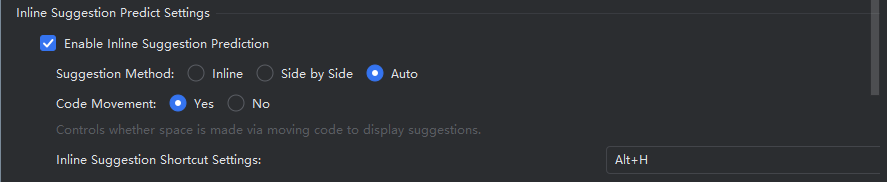
- Inline: Depending on the Code Movement setting:
- If enabled, predicted modifications or new code will shift existing lines and insert/replace at the appropriate position.
- If disabled, suggestions appear as floating overlays without altering the current line count.

- Side by Side: Predicted changes or additions do not occupy current lines nor float over them. Instead, they appear to the right of the relevant code. For new code, a small arrow indicates the insertion line.

Using Inline Suggestion Prediction
At the location where you want predictions, press the shortcut key (default: Alt + O; customizable in settings).
Review the predicted content. Hover your mouse over the Accept button to choose to accept or reject the suggestion. Once accepted, the code is updated accordingly.
(Example: After renaming a method parameter, inline suggestion prediction identifies all other references to that parameter in the context and suggests consistent updates.)
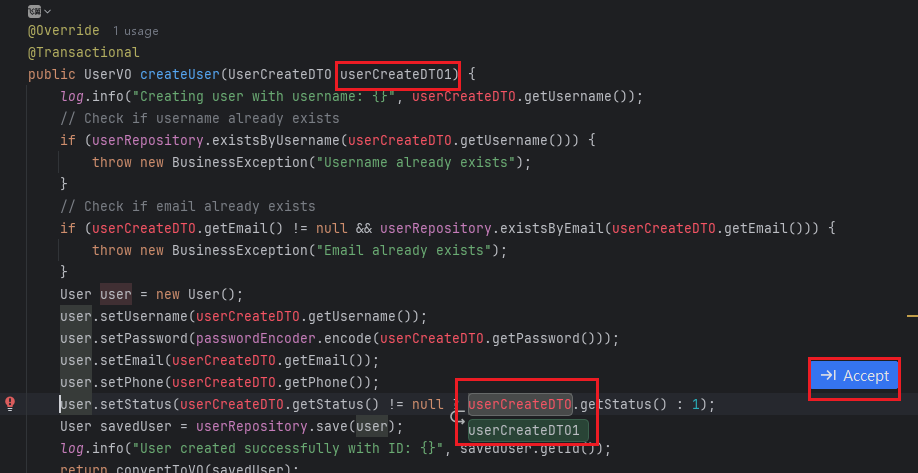
Button Description:
- Hovering over the button shows a menu to Accept or Reject. You can also use Tab to accept or Esc to reject. Click the settings icon to open the panel and adjust prediction-related preferences.
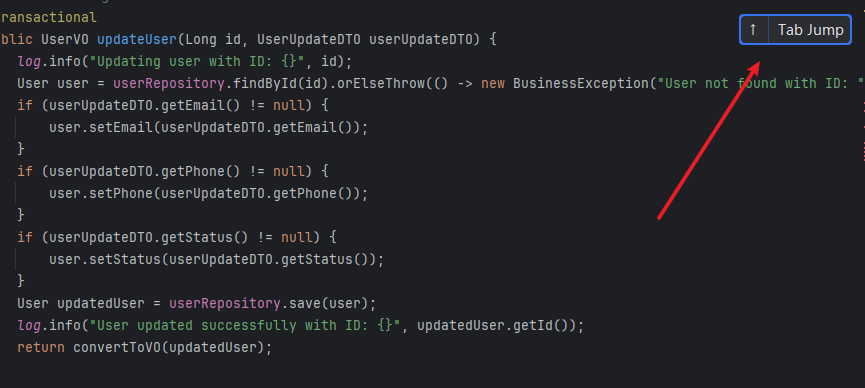
- If a suggested change is outside the currently visible area, a "Tab to Jump" button appears. Click it or press Tab to navigate to the next modification location.
- If the suggestion involves changes in another file, the same "Tab to Jump" button appears, allowing you to jump to that file’s relevant section.
Scenario Examples
Renaming a Parameter
- After renaming a parameter in the current context, trigger inline suggestion prediction with the shortcut. The system analyzes the context and suggests updating all related references to the new name.

Adding Variables, Fields, Parameters, or Comments
Add Variable
- When adding a variable inside a code block and triggering inline suggestion prediction, the system updates subsequent usages of that variable based on the new declaration.
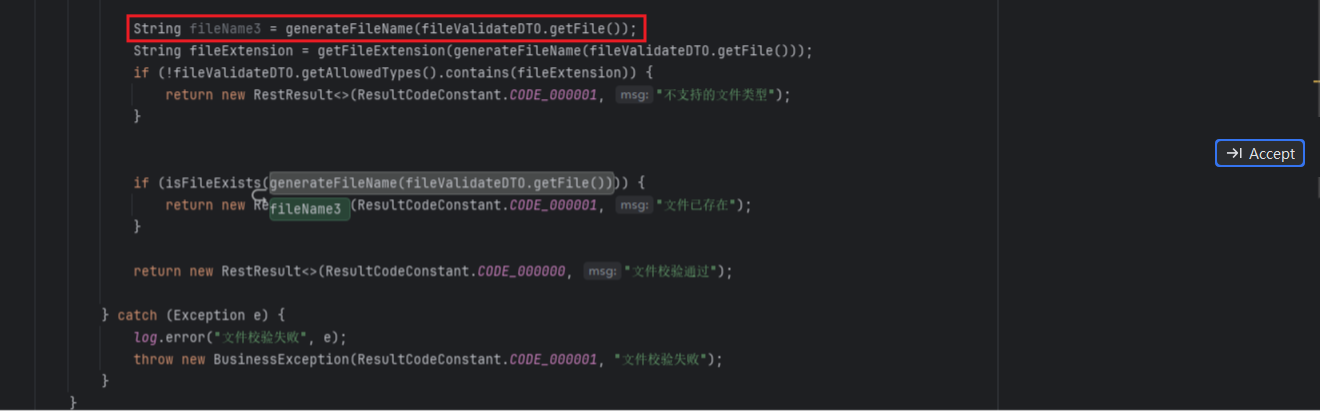
Add Field
- After adding an annotation to a field and triggering prediction, the system suggests applying the same annotation to subsequent fields in the same context.
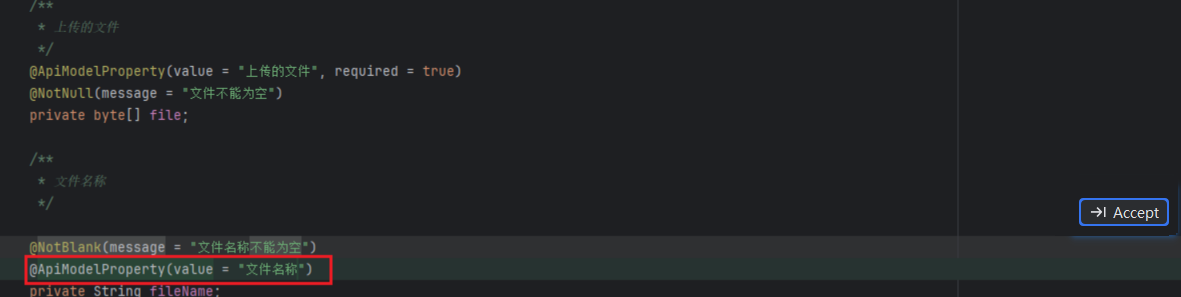
Add Parameter
- After adding a new parameter to a function and triggering prediction, the system suggests inserting that parameter at all call sites of the function.
