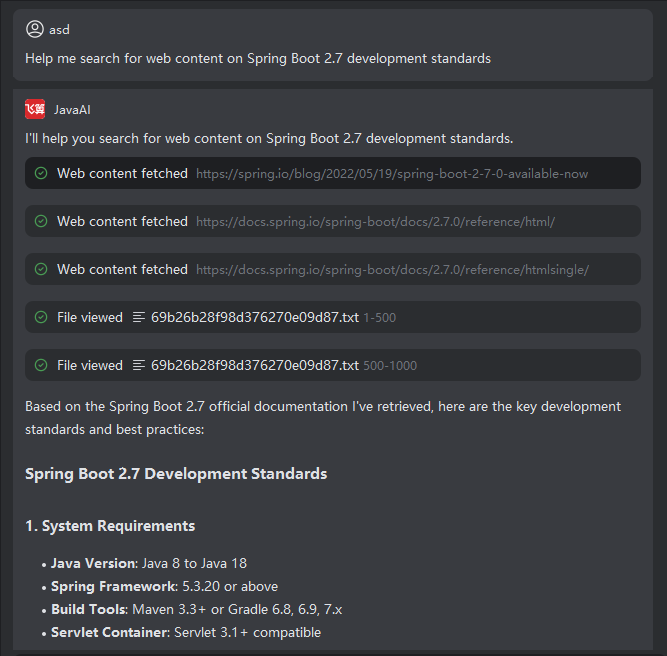
MCP Service Configuration and Usage
MCP services support multiple configuration methods. You can search for the desired service in the MCP Marketplace and install it with one click, or choose to install it manually. Once installed and successfully connected, you can use the tools provided by the MCP service.
MCP Service Configuration
Environment Setup
Node.js:
MCP service installation requires a Node.js environment. Ensure that:- Node.js version is v19 or higher
- npm version is v8 or higher
Older versions may cause installation or runtime failures. Download and install from the official Node.js website.
uv:
uvxis a command-line tool fromuvused to run Python scripts quickly. Install Python 3.8 or higher from the official Python website.
Adding Services from MCP Marketplace
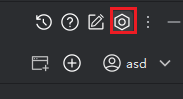
- Click the "Settings" icon in the top-right corner, then select "MCP Services" to enter the services page.
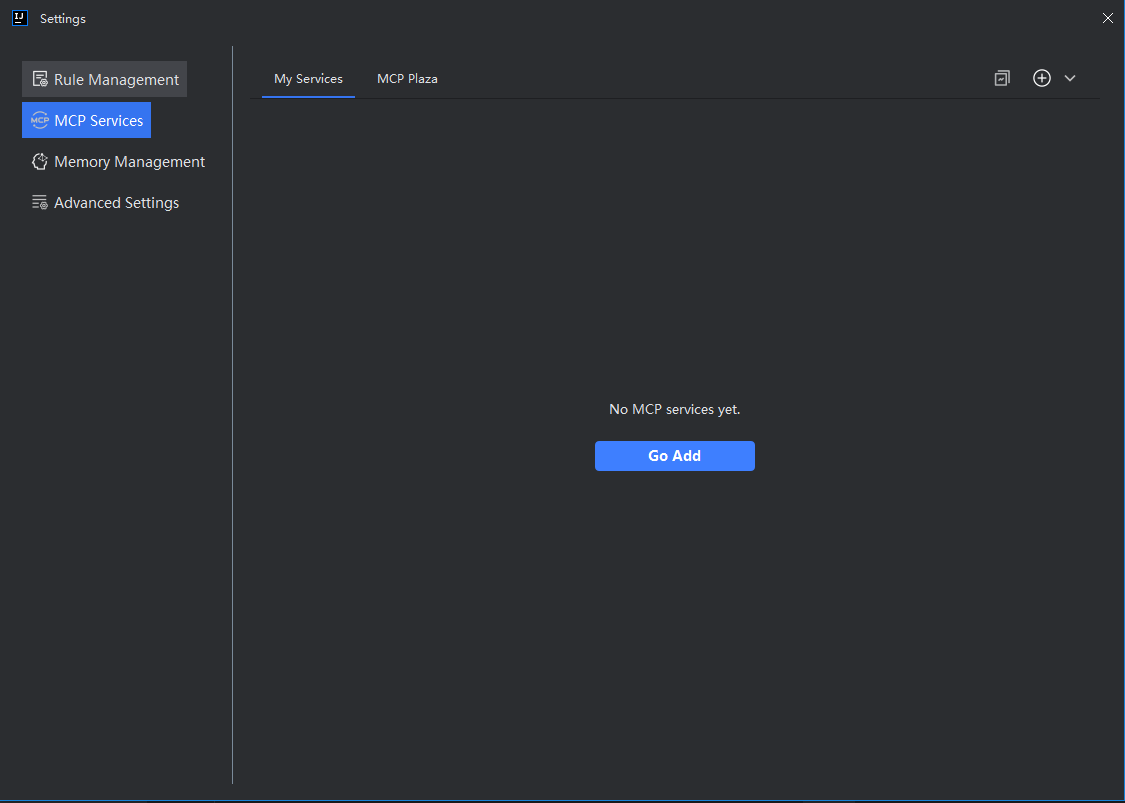
- Click "MCP Marketplace", enter the name of the desired service in the search box, and click "Install" on the result. You can also install directly from the recommended list if your service appears there.
Note: Some MCP services require additional environment variables (e.g.,
API_KEY,ACCESS_TOKEN) during usage. Check the official documentation of the service and fill in the required values. Missing these may lead to connection or execution failures.
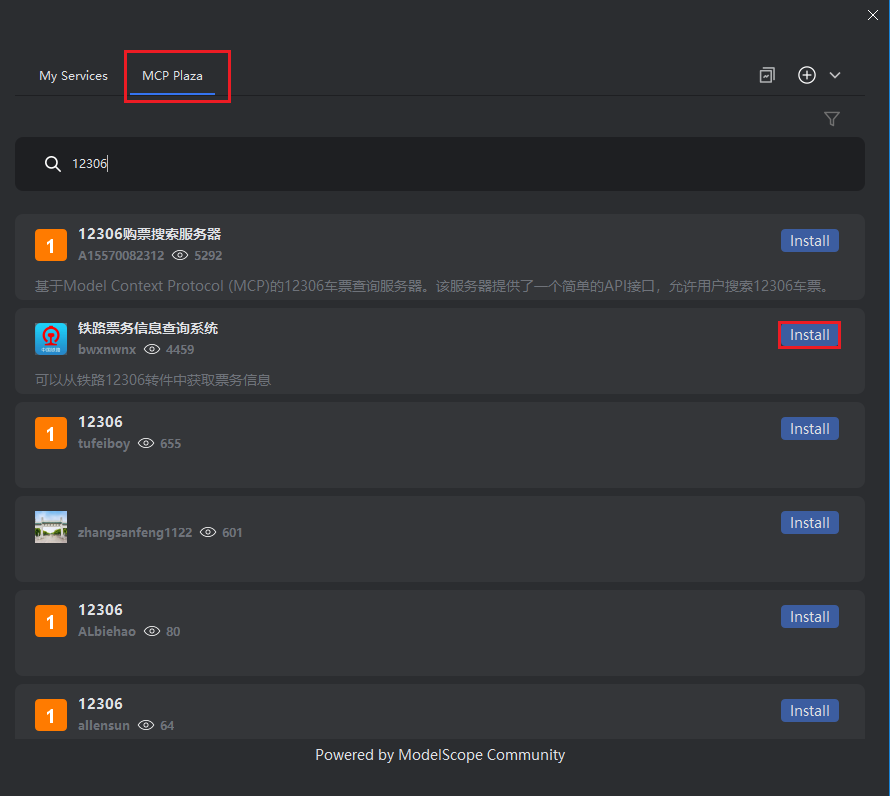
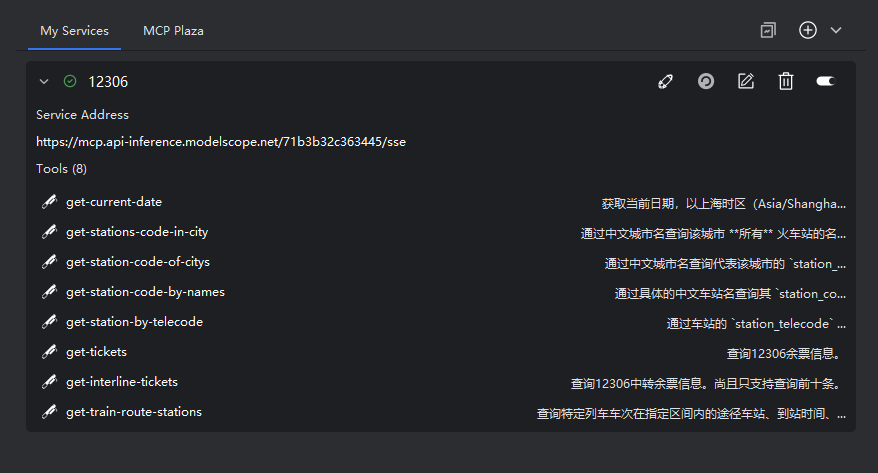
- Installed services appear under "My Services". When expanded, you can view the list of available tools for that service.
Note:
- A green icon indicates successful connection.
- A red icon indicates connection failure.
Connection stability depends on the external service itself. Failures or errors during use are typically due to issues within the MCP service, not the Feisuan Java AI plugin. If the error relates to your local environment, adjust according to the error message and retry.
Manual Installation
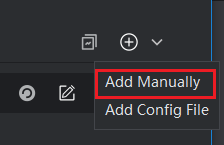
- Click the "+" button on the right and select "Manual Add".
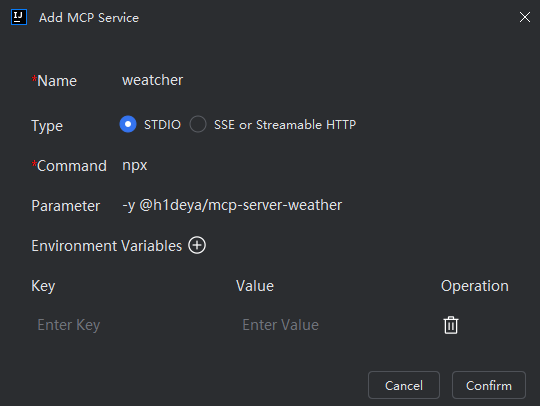
- Fill in the basic information (optional; leave blank if not applicable).
Note:
- Select the correct type based on the service:
- STDIO: Requires command-line parameters
- SSE or Streamable HTTP: Requires a valid endpoint URL
This information can be found on the service’s official MCP Marketplace page.
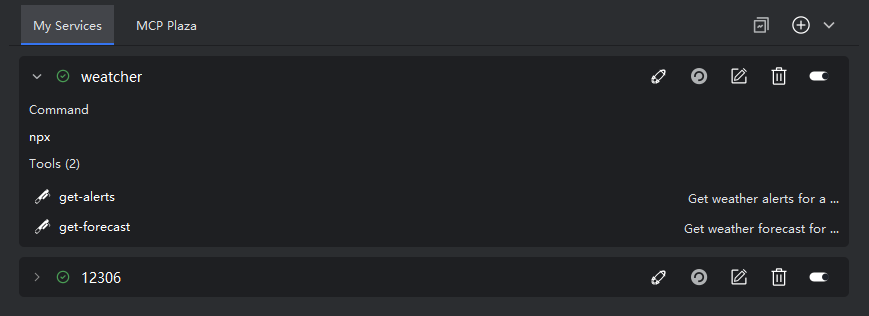
- After saving, the service appears in "My Services", and you can expand it to view its tools.
Note: Same connection status rules apply (green = success, red = failure). Issues are typically external to the plugin.
Configuration File Installation
- Click the "+" button and select "Add via Config File".
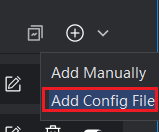
- A configuration file opens in the editor. Append the MCP service configuration in the correct format and save.
Note:
- Configuration details are available on the service’s MCP Marketplace page.
- Copy and paste the configuration. Separate multiple tools with English commas (
,).
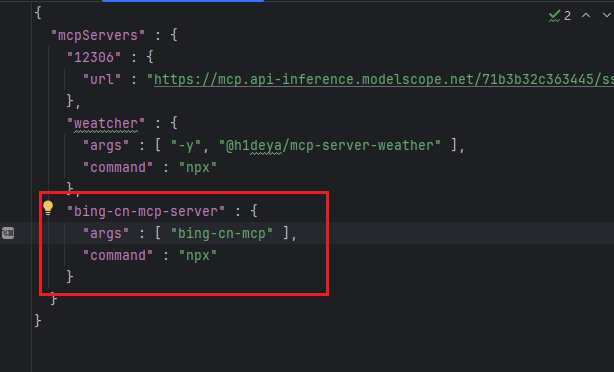
- After saving, the service appears in "My Services" with its tool list visible upon expansion.
Note: Connection status follows the same green/red indicator logic. Errors are generally service-side or environment-related.
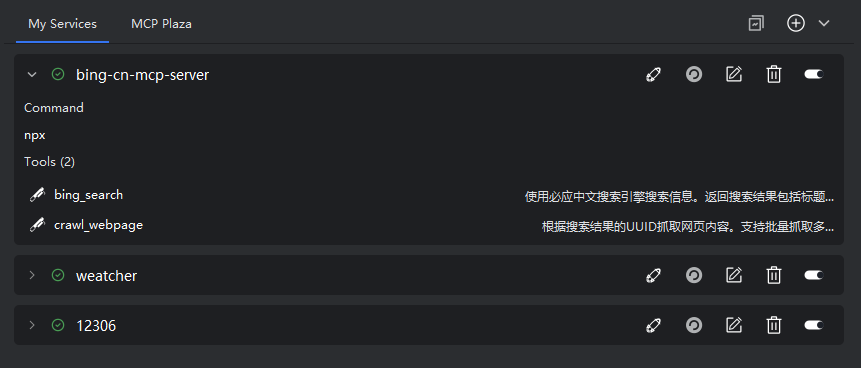
Service Function List

- Quick Try: Experience tool invocation instantly in Smart Agent mode.
- Refresh Service: Reconnect to the service.
- Edit Service: Modify service configuration.
- Delete Service: Remove the service permanently (irreversible—use with caution).
- Enable/Disable: Toggle whether the service’s tools can be invoked.
Using MCP Tools
Once a service is successfully connected, the Smart Agent in Smart Chat will automatically determine—based on your request—whether an MCP tool is needed. If so, a confirmation dialog appears. You must approve before the tool is called.
- The "Bing Search (Chinese)" service is enabled in MCP Services.
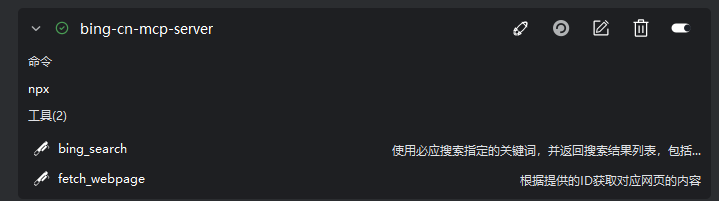
- In Smart Agent mode, enter a relevant query.
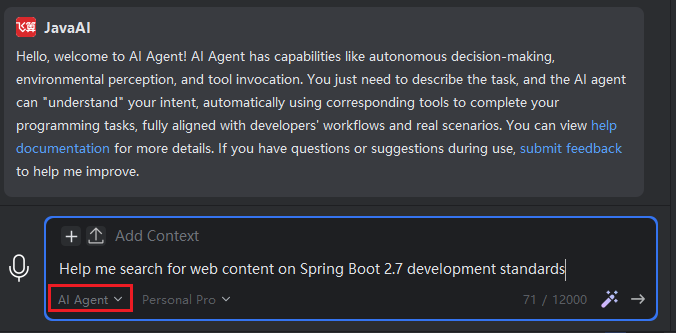
- The system detects the need for an MCP tool and prompts for confirmation. You can:
- Click "Confirm" to proceed, or
- Check "Auto-execute in future" to skip confirmation next time.
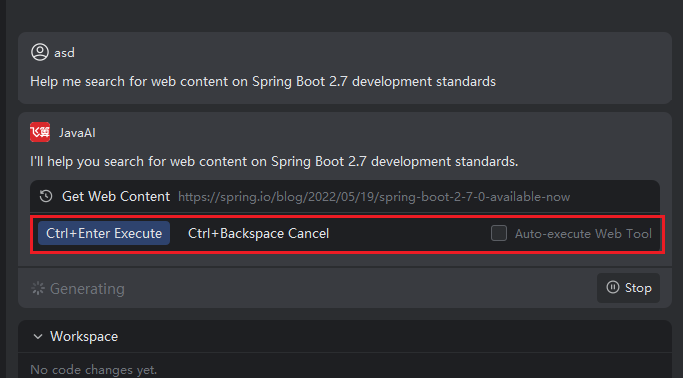
- After execution, expand the response to view detailed MCP tool output for analysis. If code files are generated, you can review them and choose to accept or reject.