Modifying Field Information
Introduction
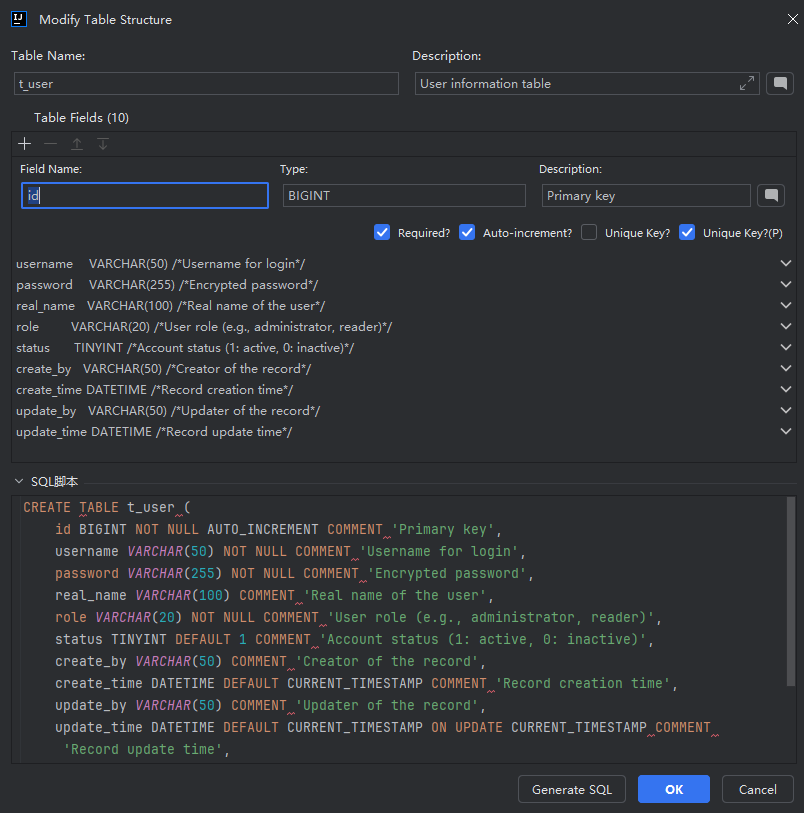
The system will automatically generate corresponding table structures and field information based on the selected database type and structural requirements. If the automatically generated result does not match expectations, users can manually modify and adjust fields to meet specific needs.
Modifying Field Information
- After parsing is complete, view the table structure data.
- Click the "Operations" button, you can modify table name, field names, descriptions, types, and set primary key, auto-increment, required fields and other field information. Automatic parsing may not be accurate, manual adjustment is possible.
- Fields can be added, deleted, or modified as needed. After modification, click the "Generate SQL" button to get the latest SQL statement.
- Only fields with int data type can have auto-increment set.
- The current field information is only displayed in the plugin for required fields and structures, but you still need to execute the corresponding SQL statement by saving the SQL script or copying the SQL script to the corresponding server, or clicking the "Execute" button to make the interface data of the source code project execute to the table storage.
- If you need to operate across databases and multiple tables, you can click the "Use Existing Table Structure" option to reselect the database and table.
- When parsing multiple database tables, you can click the "View All SQL Scripts" button to view all SQL statements, then click "Save" to save all current SQL statements as SQL scripts, then execute them without having to save each table as a SQL script and execute them one by one.
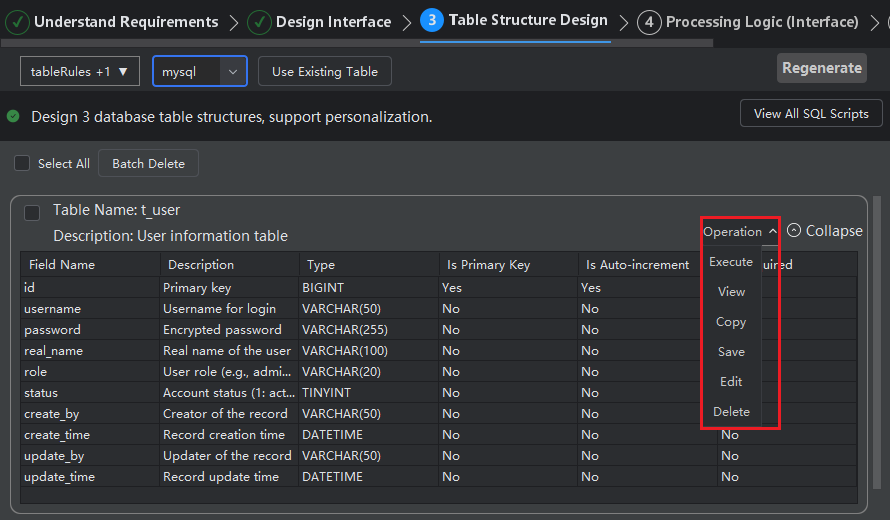
- Click the "Edit" button, then double-click the field information to edit the field, and finally click "OK".