Create Project (New Version)
Introduction
Creating a project means that the currently generated source code project will exist as an independent project. This approach is suitable for projects that need separate management or deployment. This document demonstrates the creation of a Java Web project (new version).
Create Project
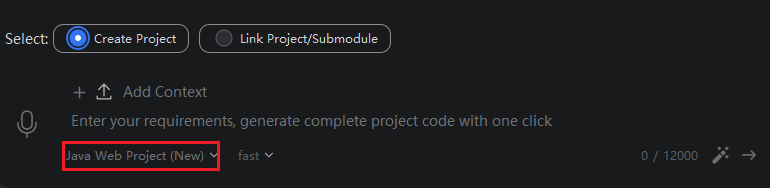
- In the step where you input requirement descriptions, select "Create Project", then select "Java Web Project (New Version)".
Description: Depending on your needs, you can choose whether to add context. Adding context will make the generated source code better aligned with your requirements, being generated based on the context content. For usage details, click on "Associate Context" to view.
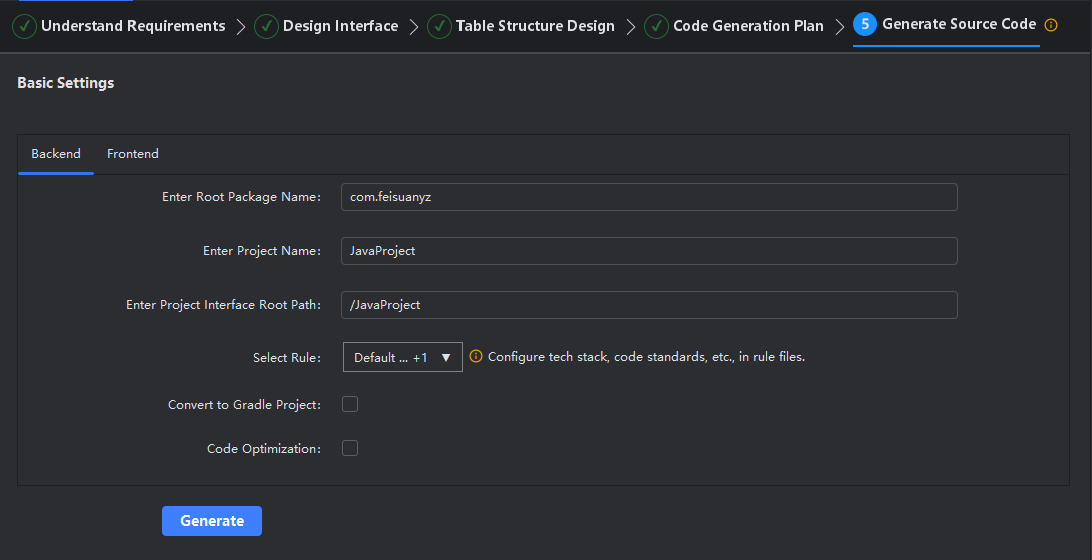
- Please enter the root package name, project name, project root path (context-path in application), and select rule files, then click "Start Generation".
Description: Rule files can be managed through add/delete/edit operations by clicking "Manage". If no rule files are selected, the default rules will be used. For details about default rules, please see the section on default rules. Additionally, you can choose whether to optimize code and convert to Gradle project in the bottom right corner, with Maven project being the default.
- Wait for the source code files to be generated.
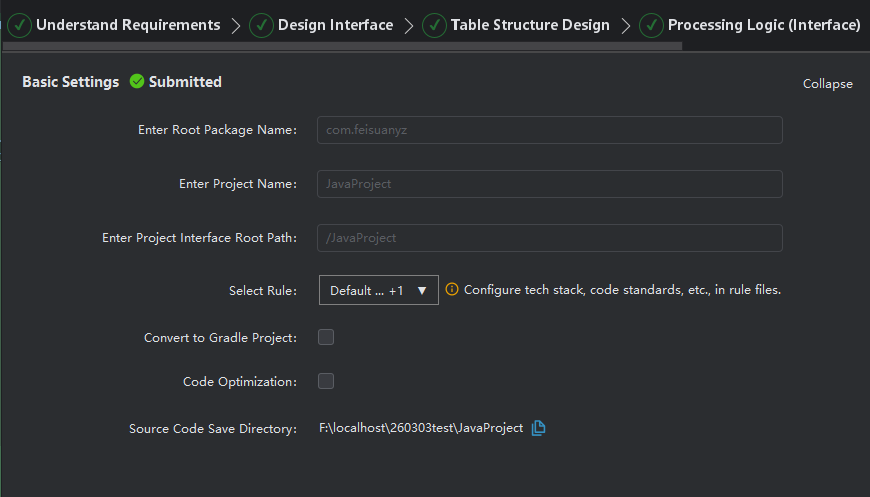
Description: Basic settings have been minimized. Click "View" to see basic information.
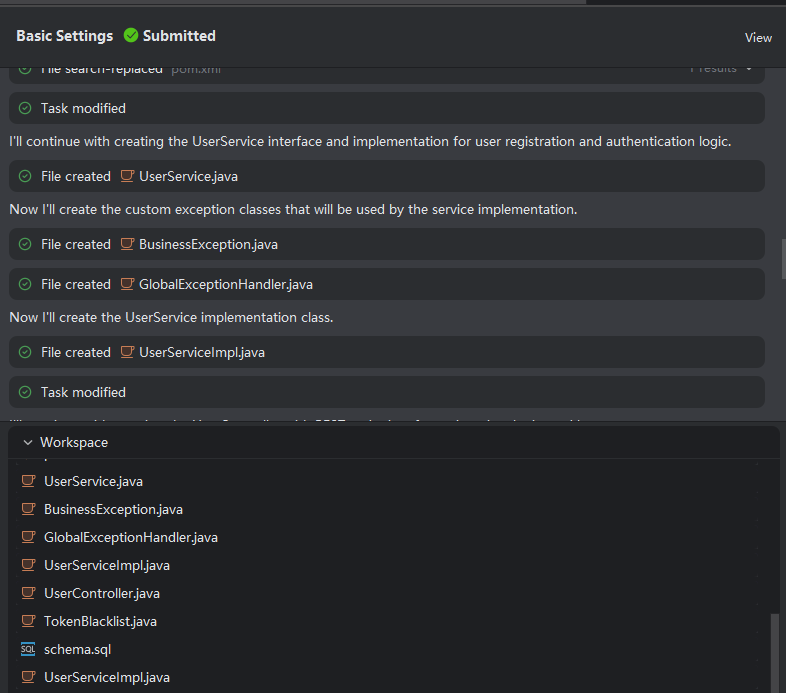
- Click on the generated Java files to view the code content of that file.
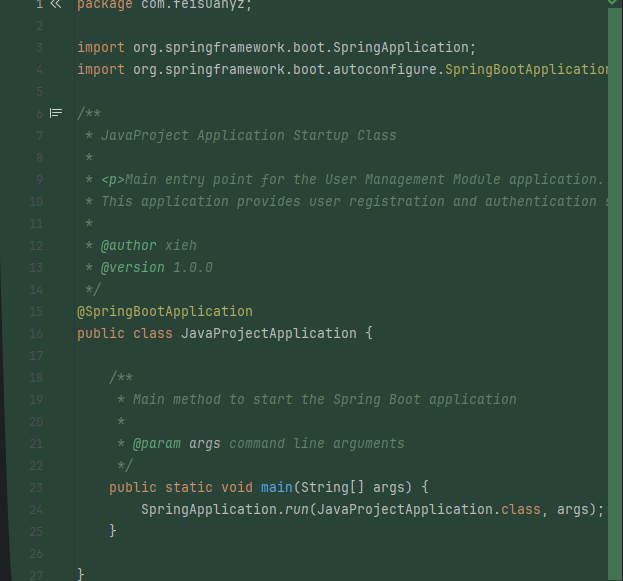
Description: Viewing code files only previews the code content. Since the required jar packages are not loaded, red highlighting in the code is normal. After selecting files and merging, there will be no red highlighting. The left side shows existing code, while the right side shows new code, with the comparison result between the two.
- After generation is complete, check the files you want to save, then click "Open Project".
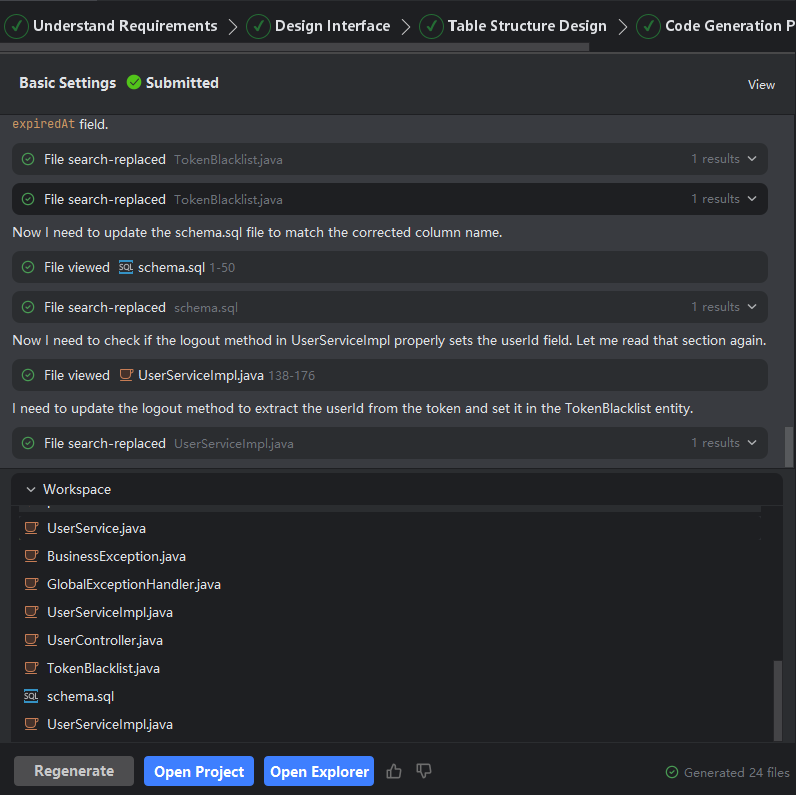
- IntelliJ IDEA will automatically open the project. After opening the project, start compiling the project. If you need to view the directory where the generated source code project is located, you can click "View" in basic settings to see the source code save directory.
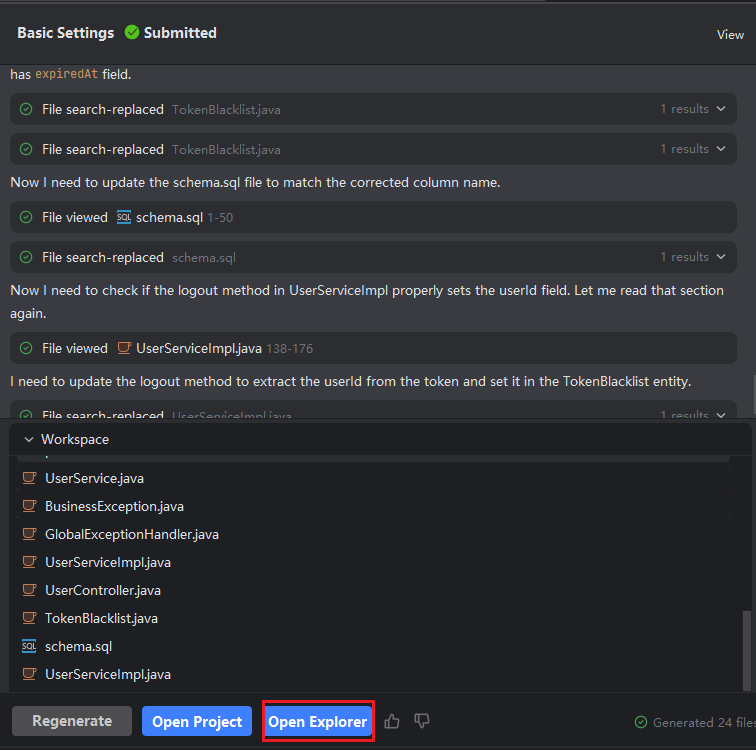
Open Explorer
- You can click "Open Explorer" to view the directory where the generated source code is located.