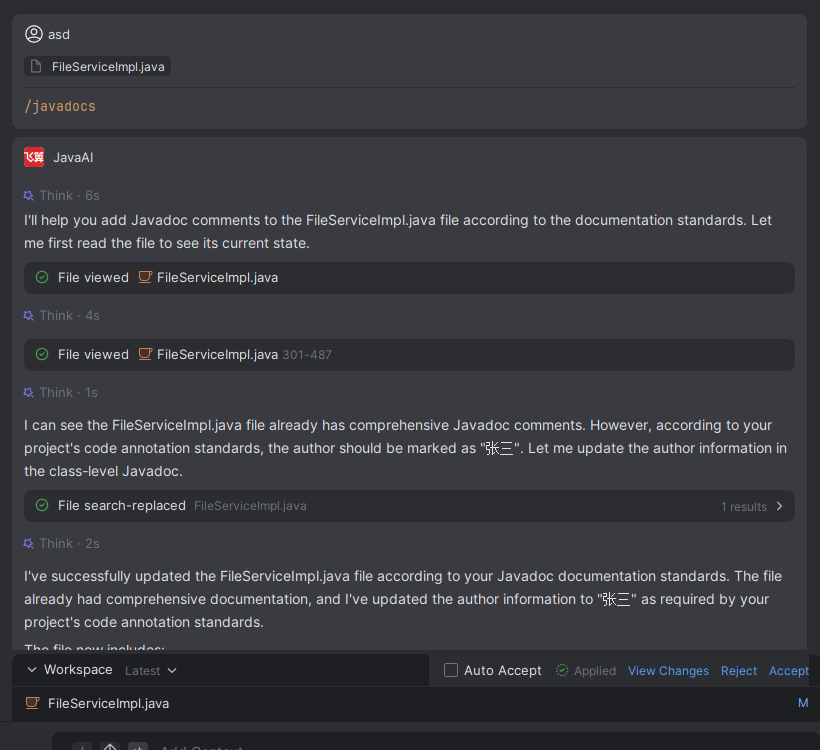
Command Management
Instructions are shortcuts used to quickly execute repetitive tasks in conversations. By creating custom commands, you can encapsulate commonly used instructions or operations, thereby streamlining your workflow and improving efficiency.
Use Cases
- Reuse common prompts: Encapsulate frequently used prompts as commands to avoid repetitive input. For example: generating document summaries, organizing meeting notes, etc.
- Standardize output format: Use commands to fix the model's output structure or template, ensuring generated content conforms to team standards. For example: generating Javadoc-compliant comments, etc.
- Automate common development workflows: Encapsulate multi-step or complex instructions into a single command that can be triggered at once. For example: code review, security checks, etc.
Command Types and Storage Paths
- Project commands: Commands that only take effect in the current project, stored in the .feisuan/commands directory under the current project.
- Global commands: Commands that take effect across all projects, stored in the .feisuan/commands directory under the "Local Storage Path" in Advanced Settings.
Creating Custom Commands
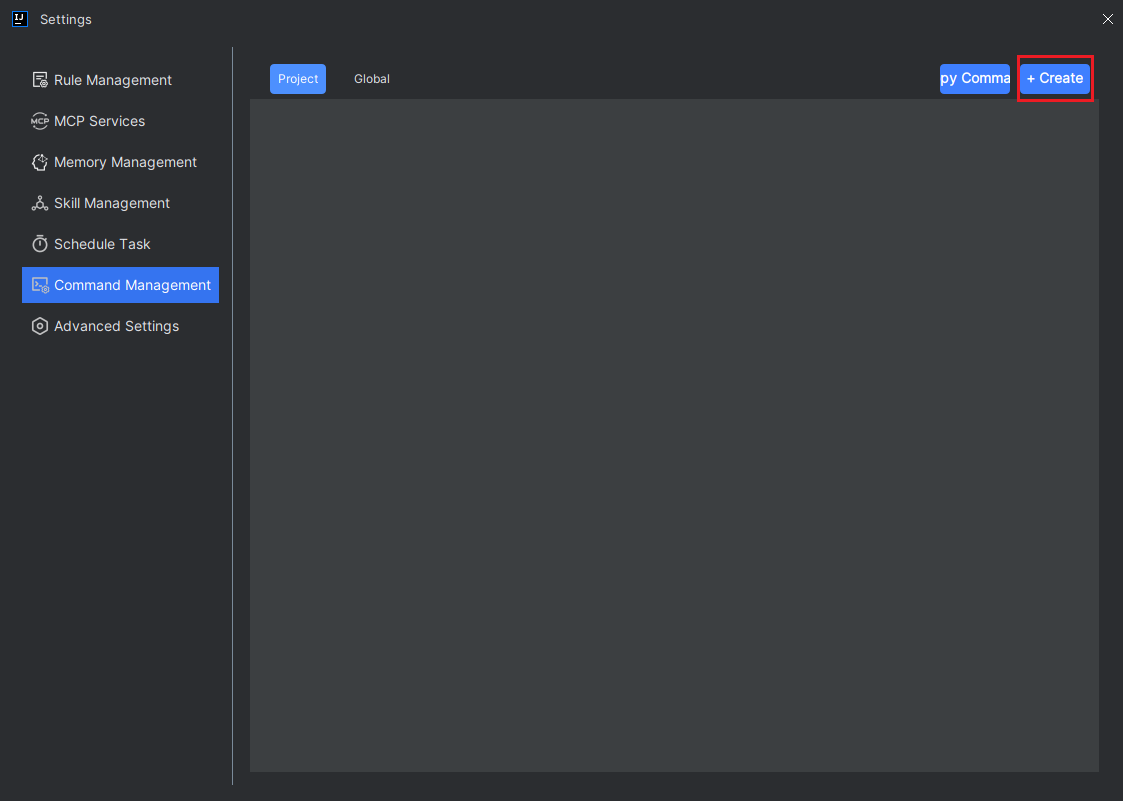
- Click "Settings > Command Management", select whether the type is "Project" or "Global", then click "Create".
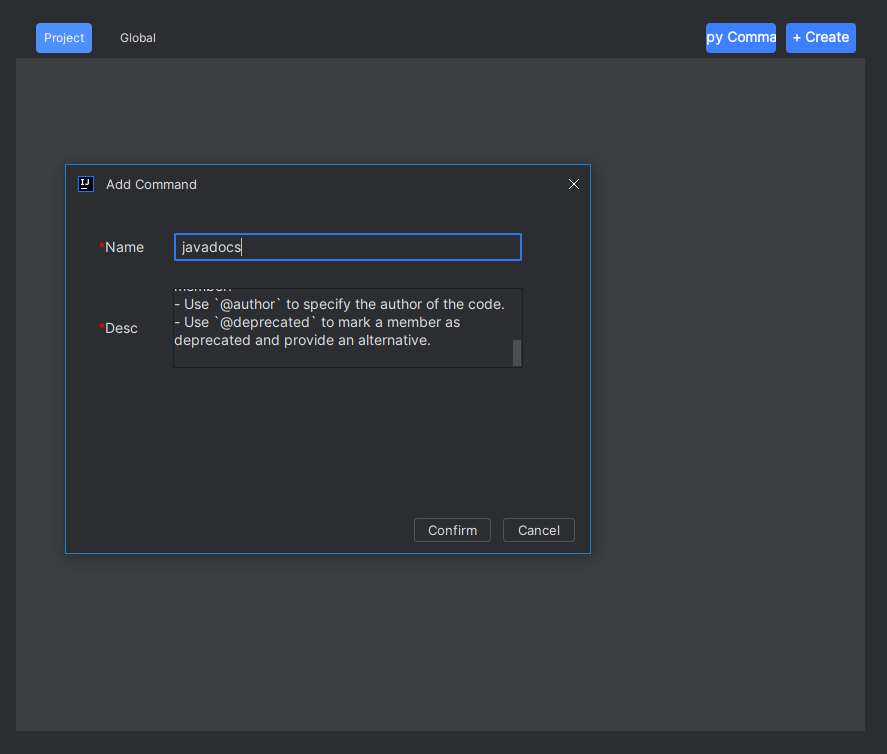
- Enter the command name and description, then click "OK". The plugin will automatically create a {command_name.md} file and open it in the editor, where you can review and modify the content promptly.
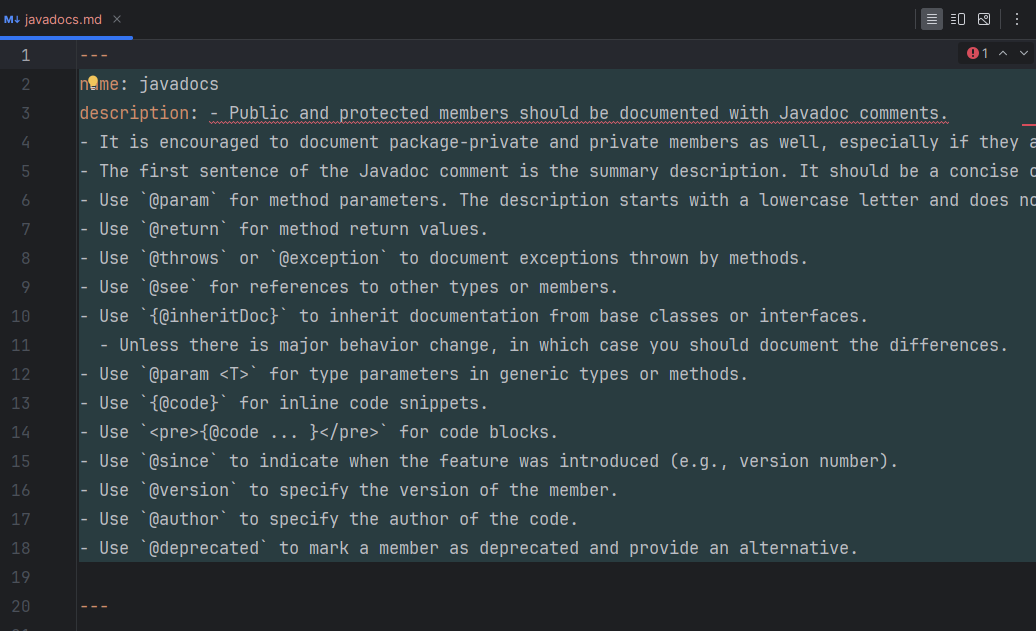
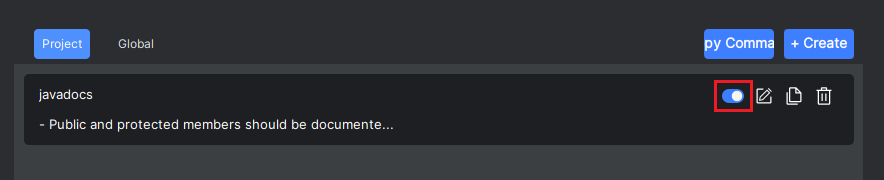
- Click the "Enable" button to activate the instruction.
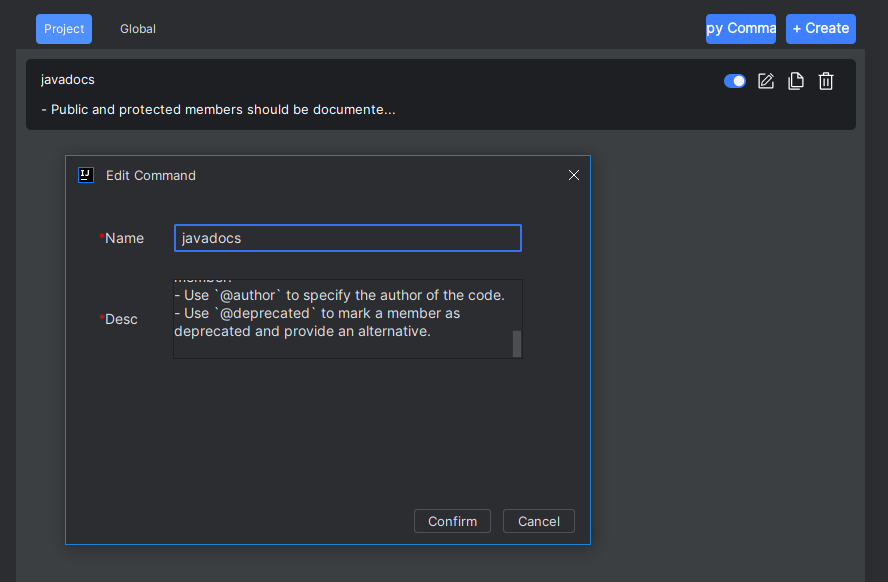
Editing Custom Commands
- Click the "Edit" button to modify the corresponding content.

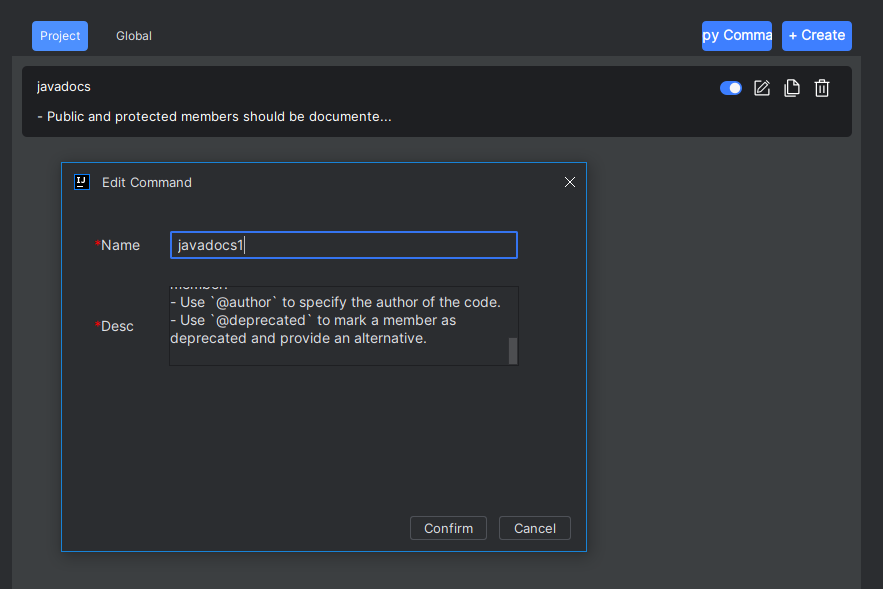
Duplicating the Current Command
- Click the "Duplicate" button, modify the name and content, and a new command will be created.

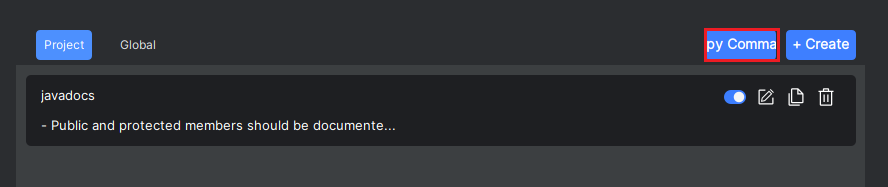
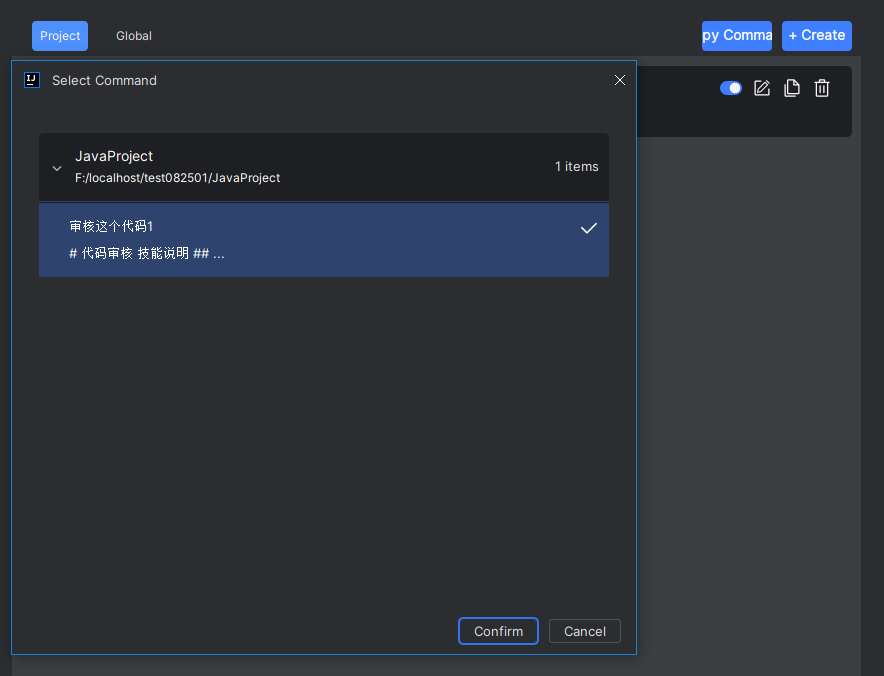
Duplicating Commands from Other Projects
- Click the "Duplicate" button above to select commands from other projects, then click "OK".
Note: Other projects refer to projects currently open in your IDE that have commands of the "Project" type.
Deleting Custom Commands
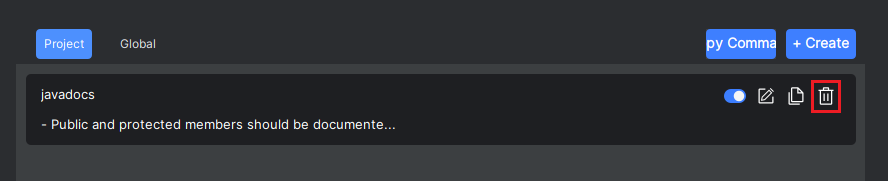
- Select the unwanted command and click "Delete".
Using Custom Commands
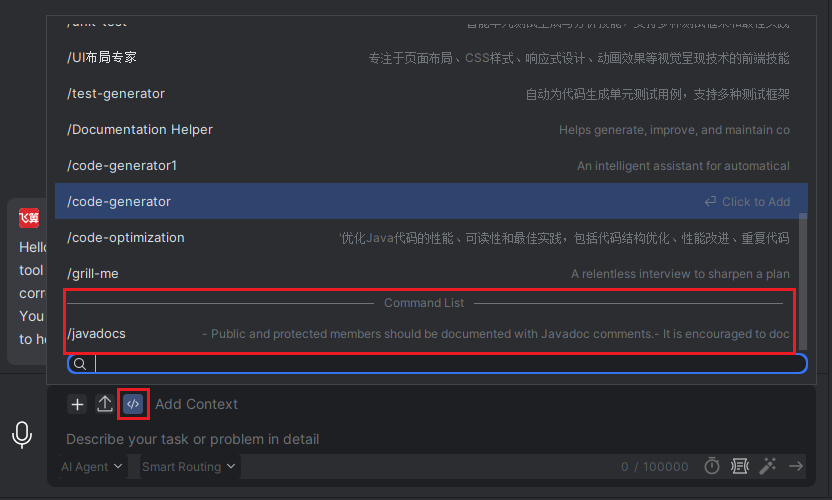
- Return to the input box, click "Add Instruction", and select the desired command from the command list. Note that the instruction must be enabled first in order to appear in the list.
- Then enter your additional requirements.
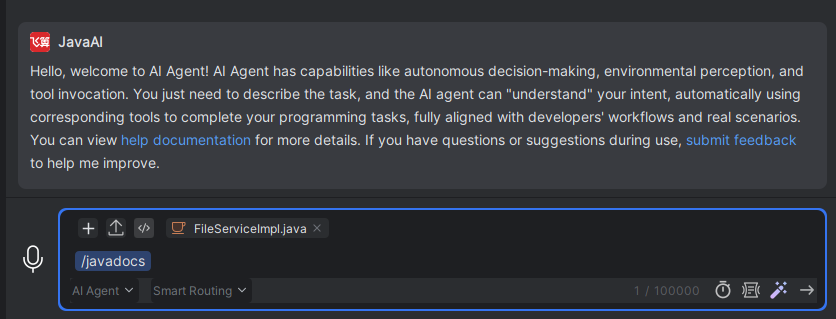
- The model will read the content of the command and complete the corresponding task.