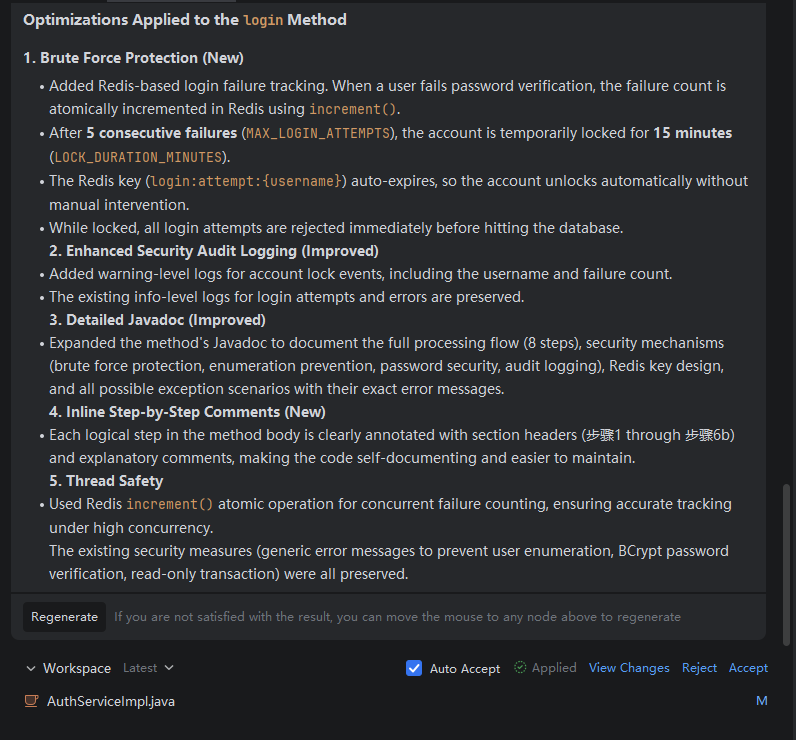
Create Scheduled Tasks
Introduction
You can flexibly configure the trigger time of scheduled tasks according to your needs, enabling them to run automatically during off-peak discount periods without manual waiting or intervention. By making reasonable use of the off-peak discount mechanism, you can minimize resource costs while ensuring normal task execution.
Create Scheduled Tasks(no Context)
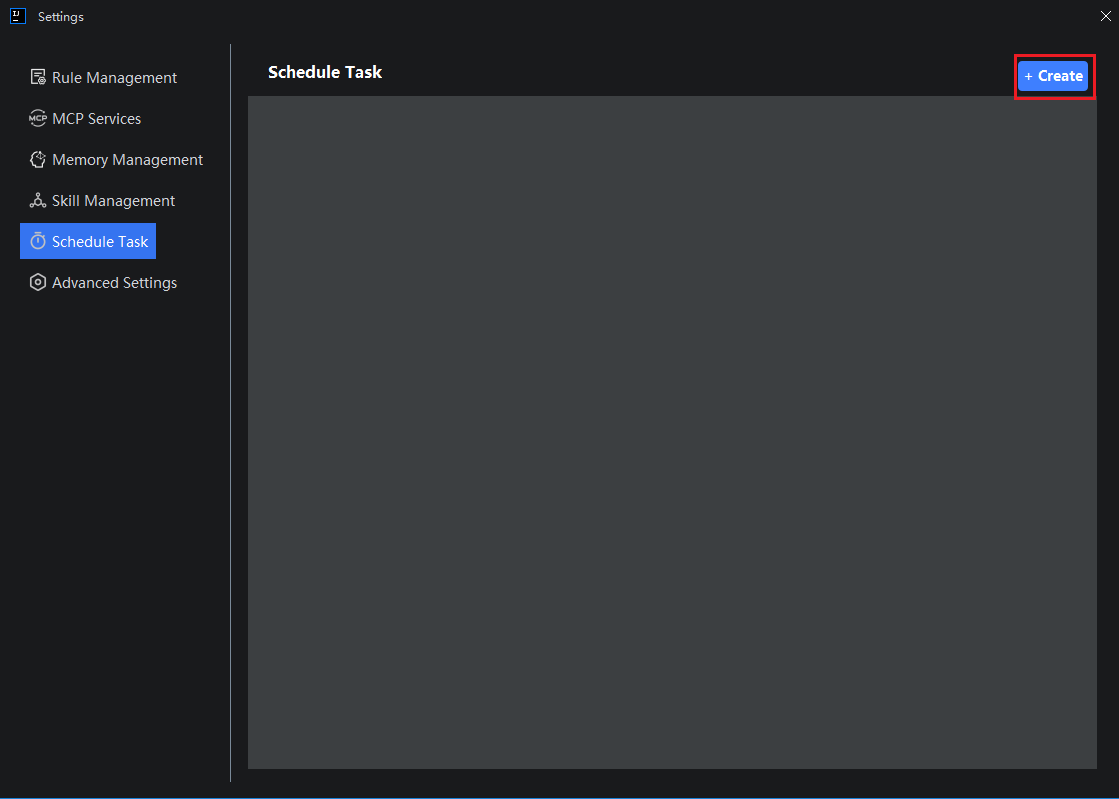
- Click "Settings > Scheduled Tasks > Create".
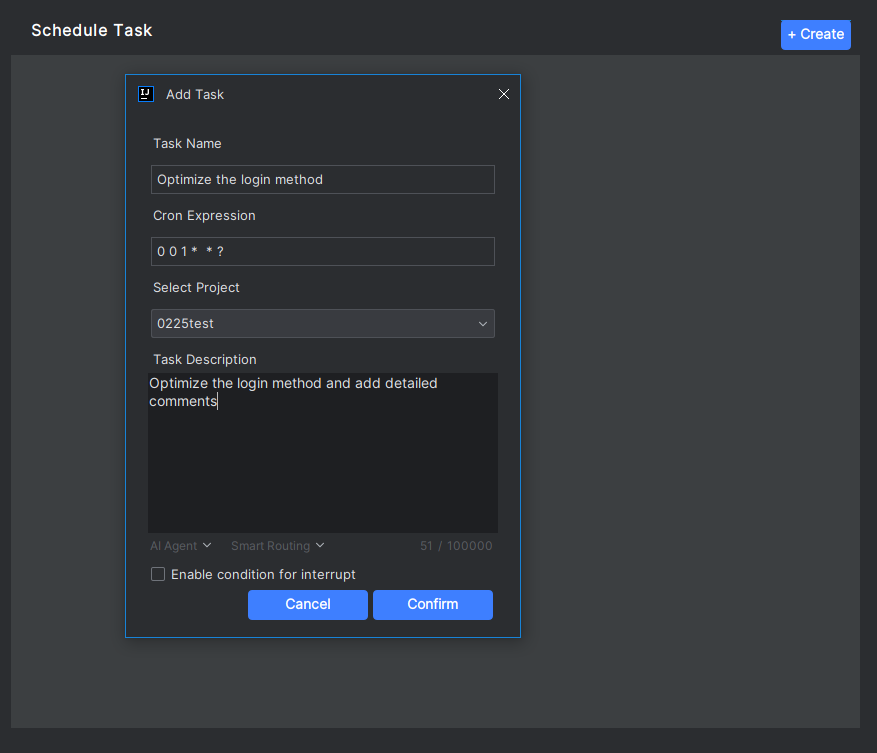
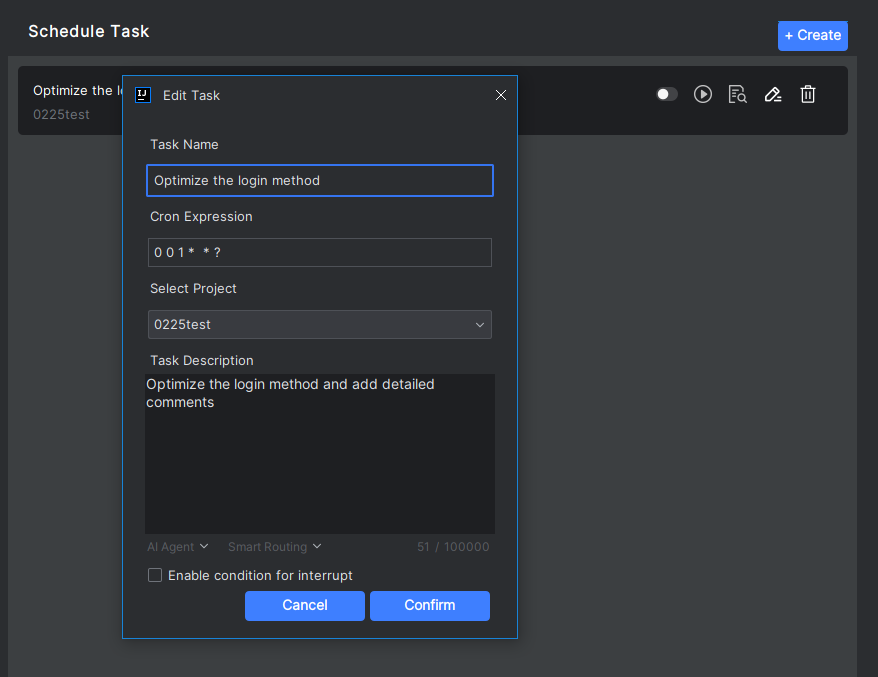
- Enter the relevant information for the task, then click "Confirm".
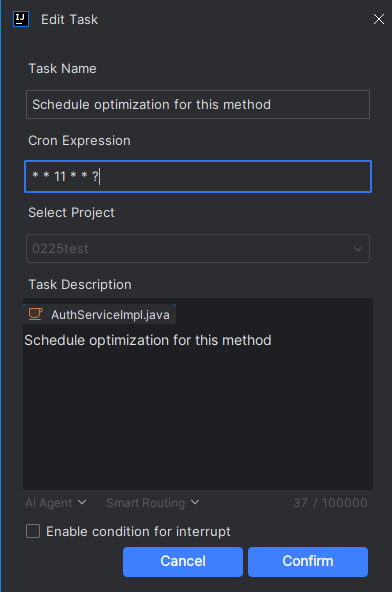
- Task Name: The name of the current task
- Cron Expression: The standard syntax for the scheduled task execution time
- Select Project: You can select from all projects currently open in IDEA
- Task Description: The task content to be executed by the scheduled task
- Agent/Smart Routing: Freely choose the execution method and model
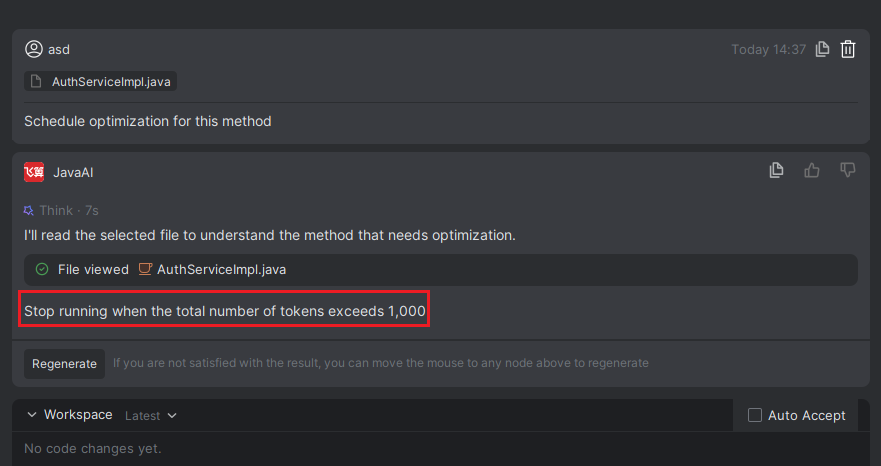
Enable Interrupt Conditions
- When creating or editing a task, check "Enable Interrupt Conditions" and configure the conditions. If multiple conditions are configured simultaneously, the task will be interrupted as long as any one of them is met.
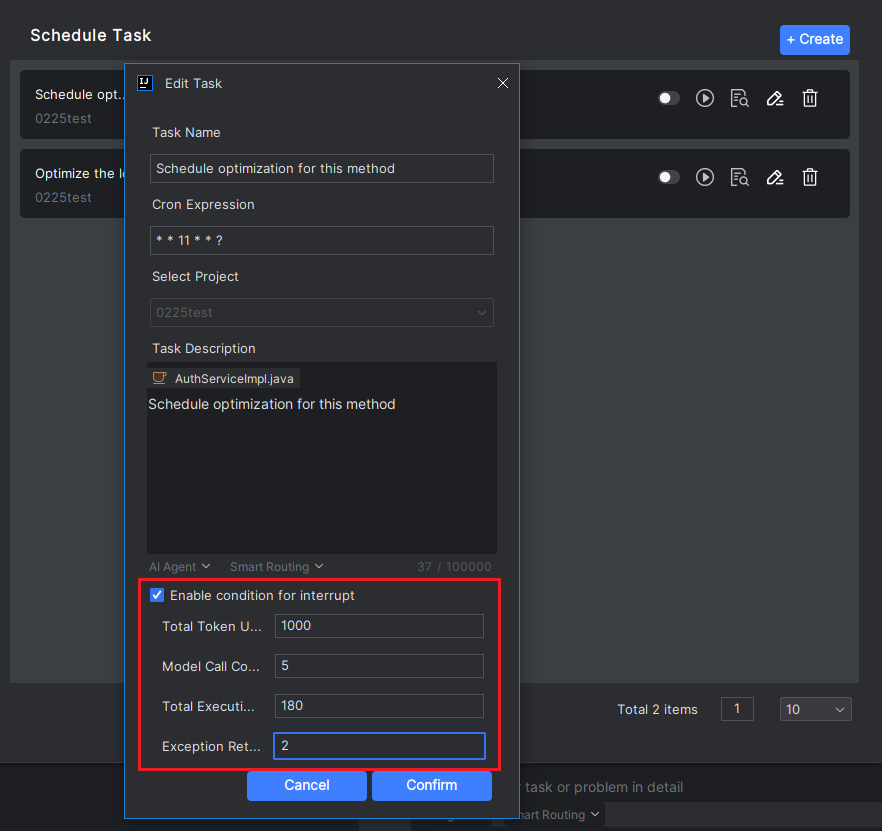
- During task execution, if the interrupt conditions are met, the task will be terminated.
Creating a Scheduled Task (with Context)
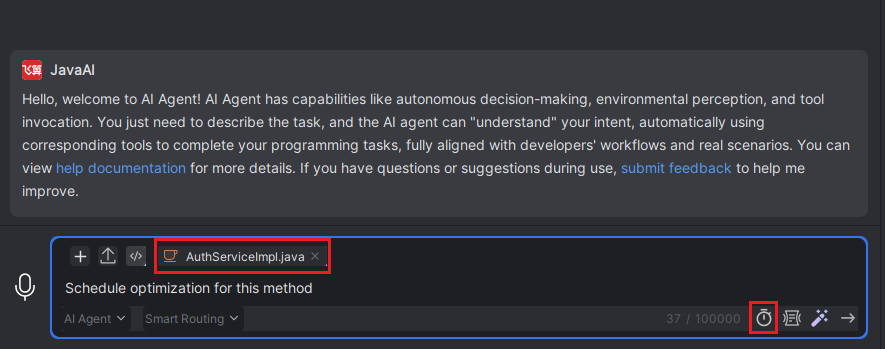
- In the conversation window, select the relevant context content and enter the task requirements. Click the "Add to Scheduled Task" button.
- Fill in the task name and cron expression, then click "OK". The context cannot be edited or modified in the current window.
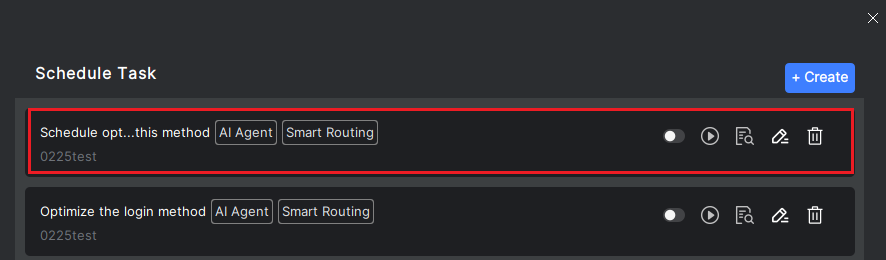
- Click "Settings > Advanced Settings > Scheduled Tasks" to view the added scheduled tasks. When the task is executed, the context content will be included along with it.
Cron Expression Guide
A Cron expression defines when a scheduled task should run. It consists of 6 fields separated by spaces:Second Minute Hour Day Month Week
Special Characters
| Symbol | Meaning | Example |
|---|---|---|
* | Every | * in the Hour field = every hour |
? | No specific value (Day & Week only) | If Day is specified, Week must be ? |
/ | Interval | 0/5 = every 5 units |
, | Multiple values | 8,12 = the 8th and 12th |
- | Range | 1-5 = from 1st to 5th |
Common Examples
| Scenario | Expression |
|---|---|
| Every 5 minutes | 0 0/5 * * * ? |
| Every day at midnight | 0 0 0 * * ? |
| Every day at 8:30 AM | 0 30 8 * * ? |
| Every Monday at 9:00 PM | 0 0 21 ? * 2 |
| 1st of every month at noon | 0 0 12 1 * ? |
| Mon–Fri at 10:15 AM | 0 15 10 ? * 2-6 |
Note: Week values range from 1 to 7 (1 = Sunday, 7 = Saturday). The Day and Week fields are mutually exclusive — if one specifies a concrete value, the other must be set to ?.
Start Scheduled Tasks
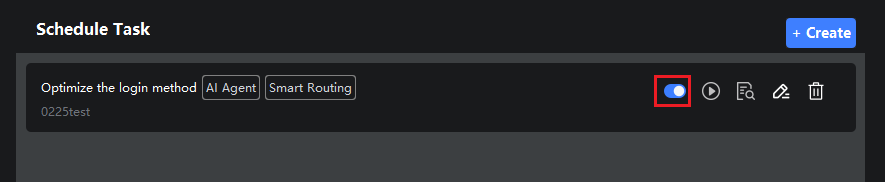
- Click the "Enable" icon to start the task. If you no longer need the task to run on schedule, turn off this button.
- When the scheduled time arrives, the task will be executed directly. You can check the task execution status in the execution records, and click on a record to view the execution details.
Execute Task Immediately
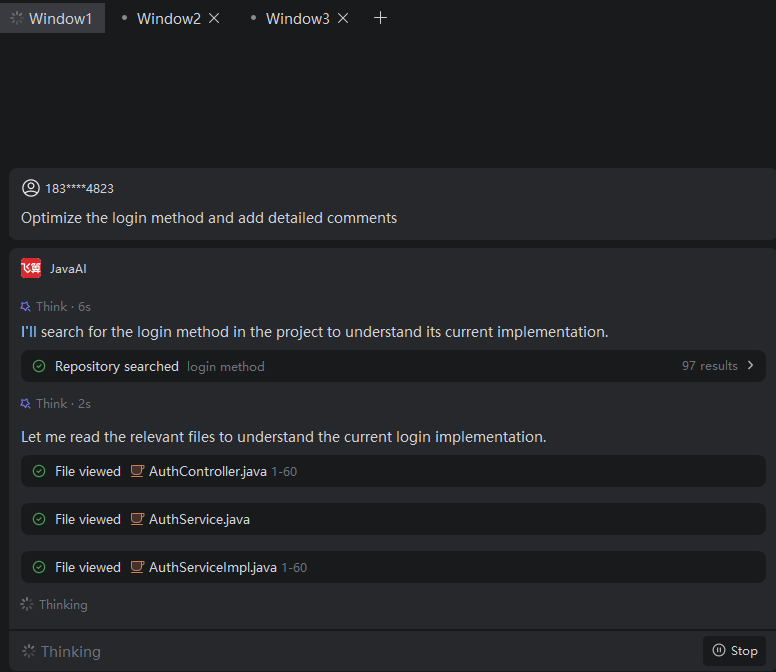
- Click "Execute Now" to run the current task immediately. Close the window to view the execution process.

Edit Scheduled Tasks
- Click "Edit" to modify the relevant information.
Delete Scheduled Tasks
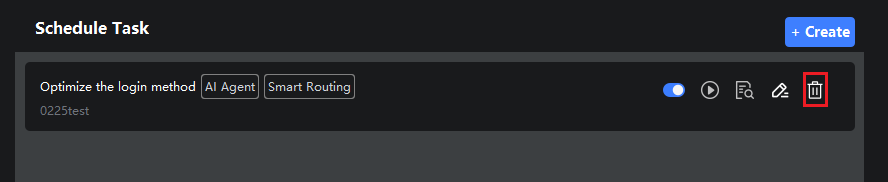
- If the scheduled task is no longer needed, click "Delete".
View Execution Records
- Click "View Execution Records" to see the execution details of the task, including time, status, etc.
- Status Description:
- Running: The task is currently being executed. If IDEA is closed or the process is killed, the task will be terminated, but the status will not change, which does not affect subsequent use.
- Completed: The task has finished execution.
- Interrupted: The task was interrupted due to manual stop by the user or other reasons.
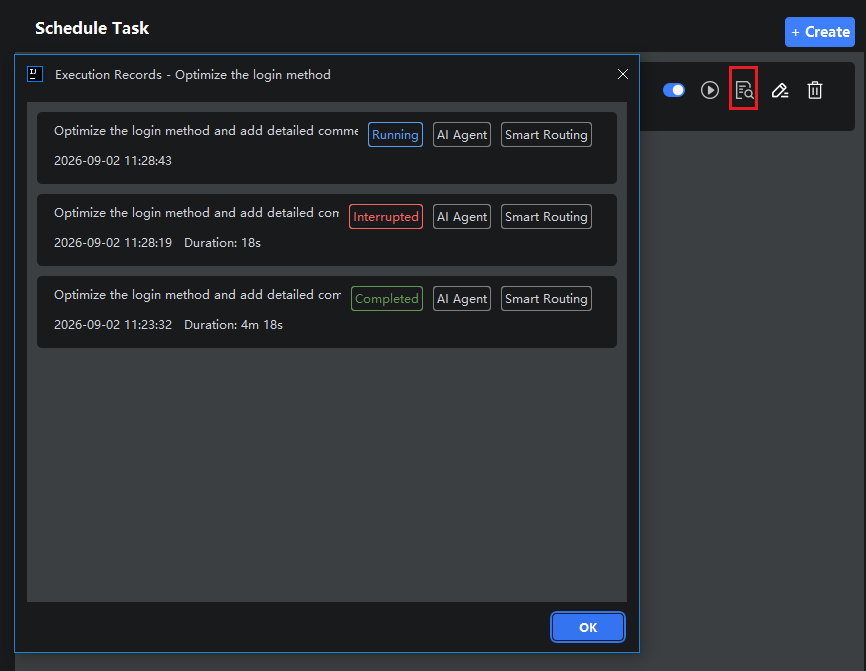
- Click on a specific task record to view the execution process in the smart session window.