Unit Test Generator
Introduction
The Unit Test Generator automatically builds your current project and detects the development environment. It then generates test plans and high-quality unit test cases, compiles and runs them, and even auto-fixes issues based on error feedback. This significantly improves test coverage and quality while drastically reducing the time and effort required to write unit tests manually.
Using the Unit Test Generator
- Click the "top-left corner" to switch and select "AI Toolbox".
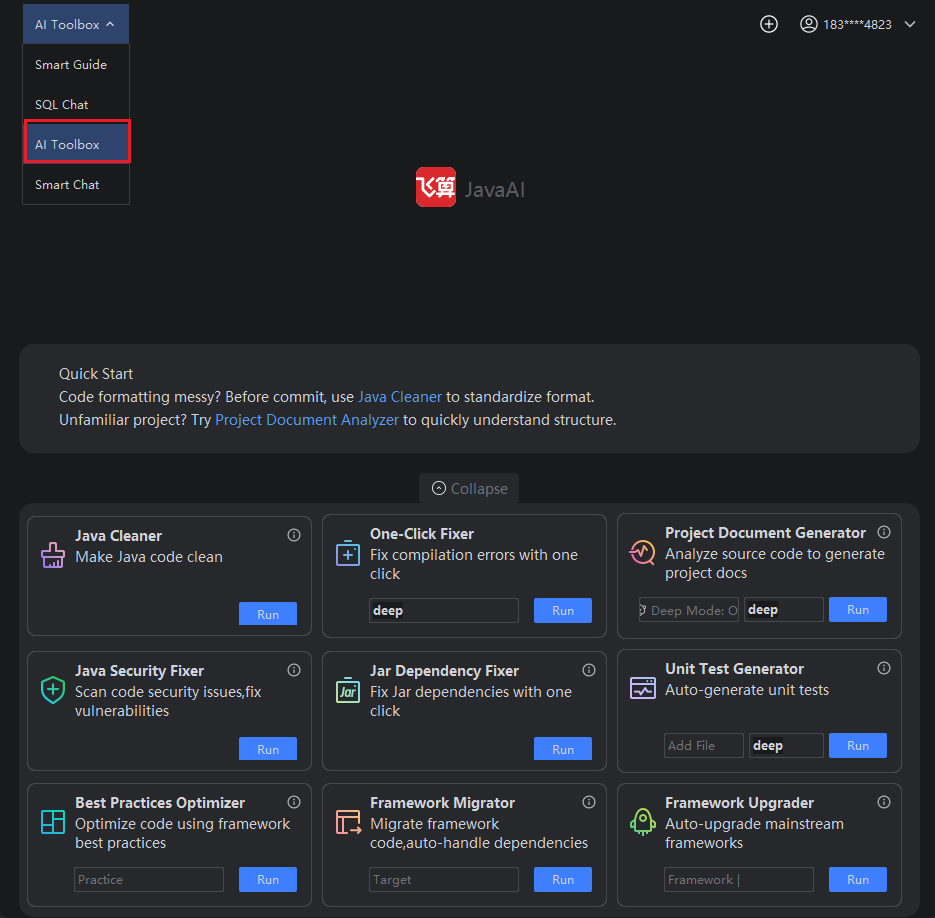
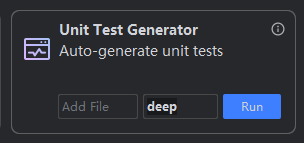
- Select the Unit Test Generator, choose the target class or method context for which you want to generate tests, and click "Run".
Project Build & Environment Detection
The system begins building your project.- If the build succeeds, proceed to review and confirm the detected environment configuration.
- If the build fails, resolve the reported issues before continuing.
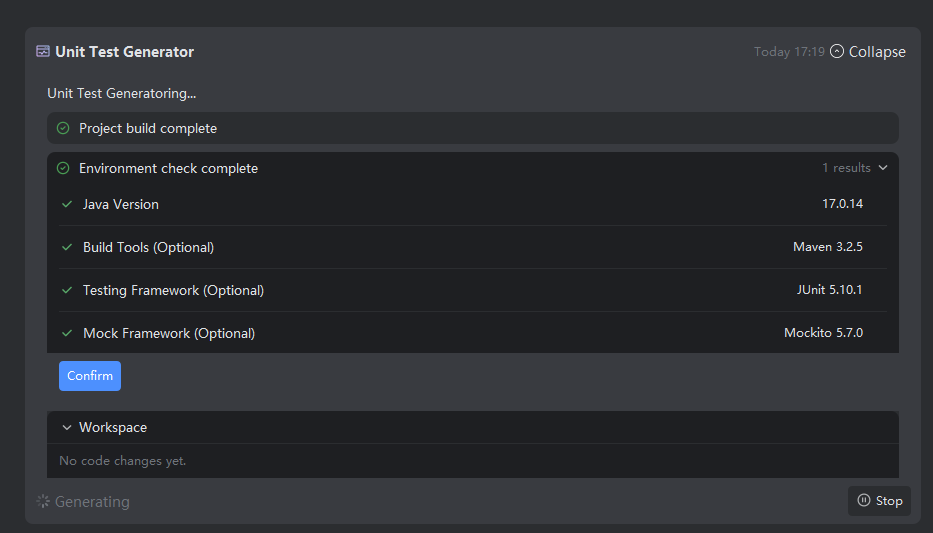
Note: The system automatically detects key environment details such as Java version, build tool (Maven/Gradle), testing framework (JUnit/TestNG), and mocking framework (Mockito, etc.).
- If multiple versions are found, you can manually select your preferred one.
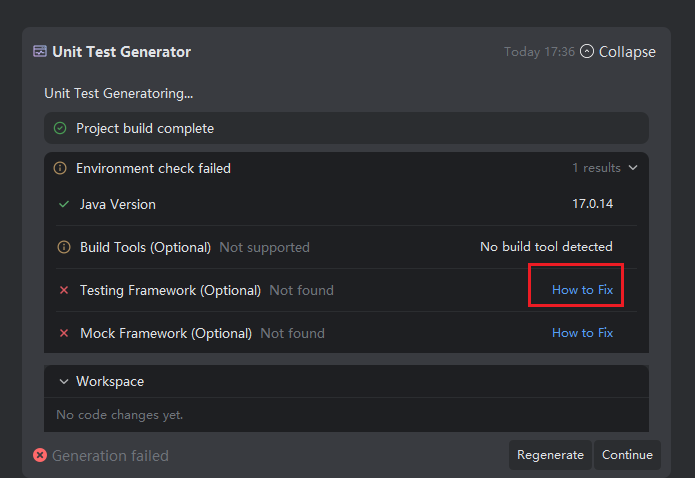
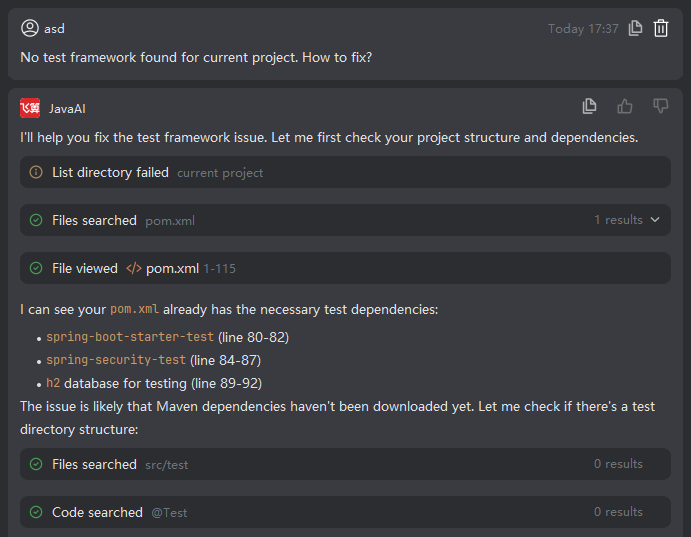
- If detection fails, an error prompt appears. Click "How to Fix" to learn how to configure your environment correctly.
Select Methods for Test Generation
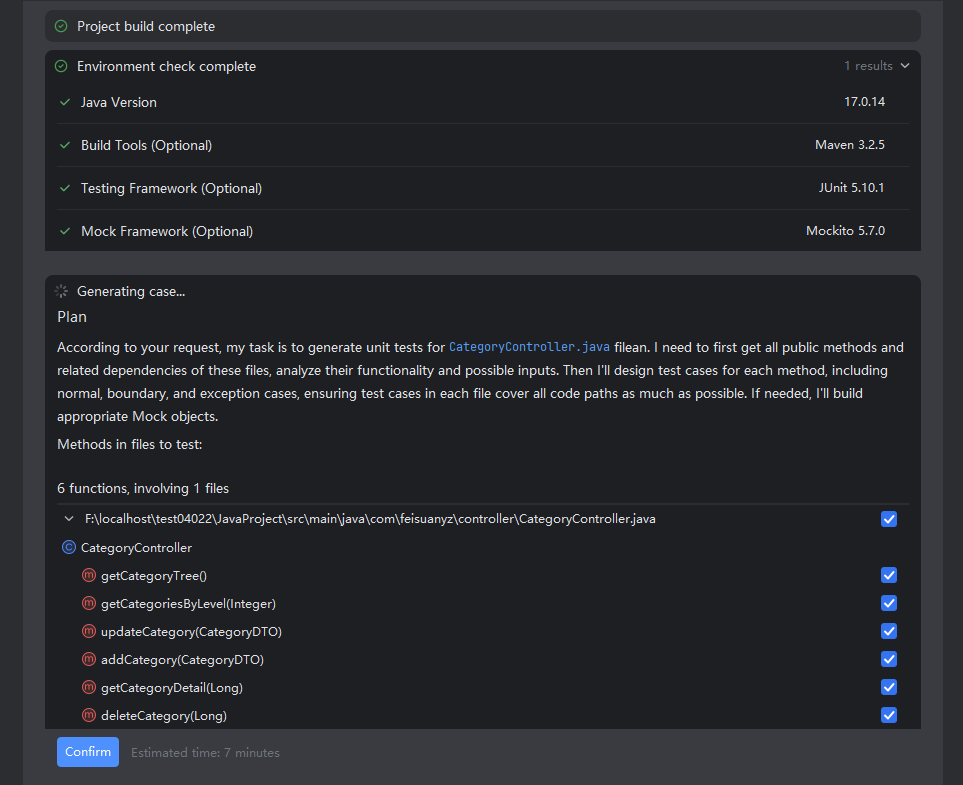
Choose the specific methods you want to generate unit tests for, then click "Confirm" to start generation.Note:
- You must select at least 1 and up to 20 methods per run.
- An estimated generation time will be displayed for reference.
Review Test Compilation & Execution Results
After selection, the system:- Generates test cases for the chosen methods,
- Automatically compiles and runs them,
- Attempts to auto-fix any failures,
- Displays the final results.
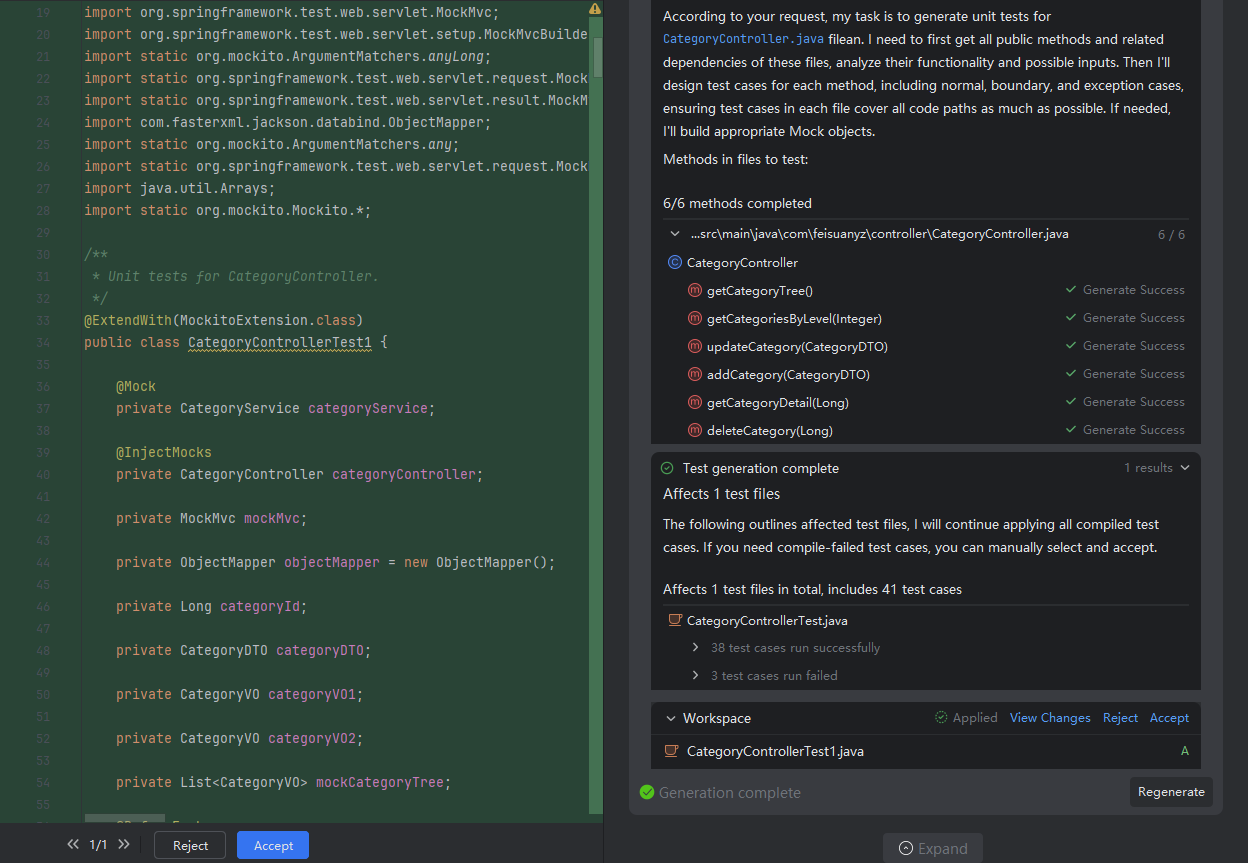
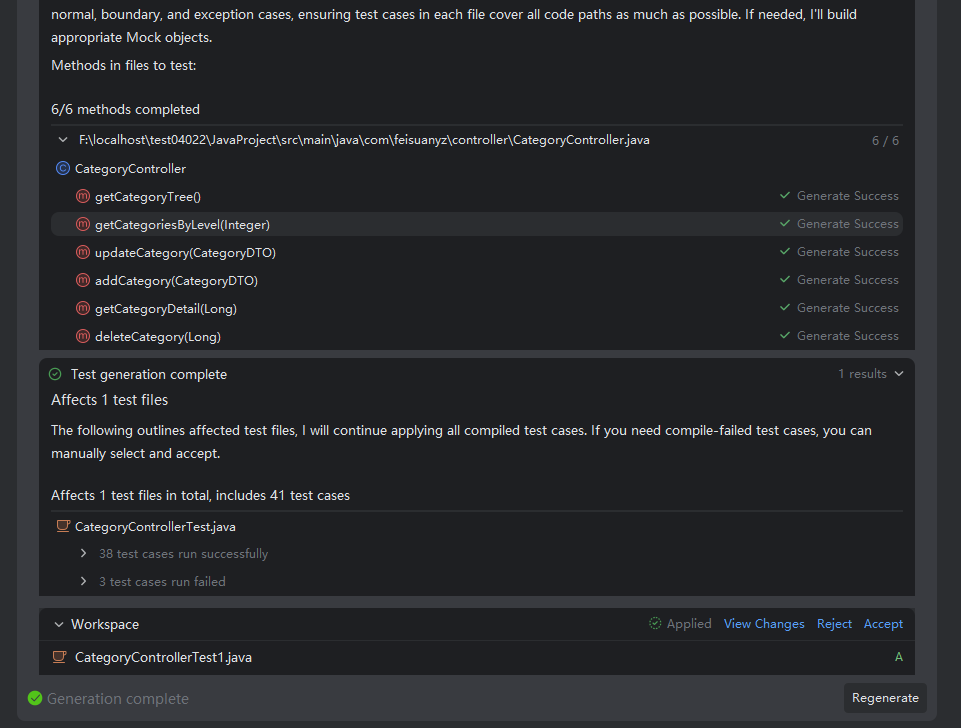
All successfully compiled and executed test cases are merged into a final test file, named automatically based on the source class. For failed cases:
- You may optionally retain compilation-failed test code by checking the corresponding box.
- Once all selections are confirmed, click "Finish" to proceed. The generated file will then be compared against any existing test file via diff.
Preview and Accept Generated Tests
In the preview pane, review the generated test code for correctness and completeness. Then choose one of the following actions:- Accept: Apply all changes
- Partially Accept: Accept only selected parts
- Reject: Discard the generated file
Once accepted, the test file is integrated into your project.