
Rule Types
Introduction
Rules are categorized into four types based on how and when they are triggered. Choose the appropriate type according to your usage scenario to ensure precise and efficient rule application.
Rule Types Overview
| Type | Trigger Mechanism | Typical Use Cases |
|---|---|---|
| Model Decision | In Smart Agent mode, the AI autonomously decides whether to apply the rule based on its description. Applied rules are shown in the response. | Scenario-specific rules (e.g., only for unit test generation or comment writing). |
| File-Specific | Automatically applied when the current file matches a user-defined pattern (e.g., .java, src/**/*.ts). | Rules that should only affect certain file types or paths (e.g., .css files). |
| Always Active | Applies to all requests in both Smart Chat and Inline Chat by default. | Universal conventions (e.g., coding style, response persona, formatting rules). |
| Manual Import | Activated only when explicitly referenced via #规则 (or “#Rule”) in the chat input. | One-time or ad-hoc custom instructions (e.g., special formatting for a file). |
Model Decision
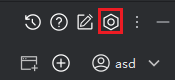
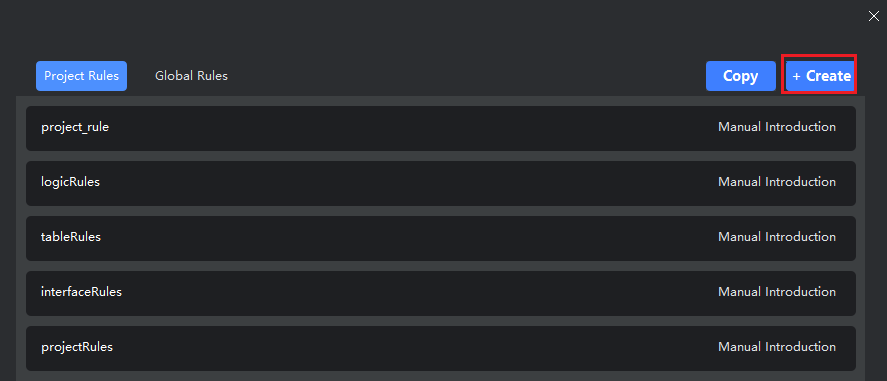
- Click the "Rule Management" icon in the top-right corner, select a rule scope (project or global), then click "Create".
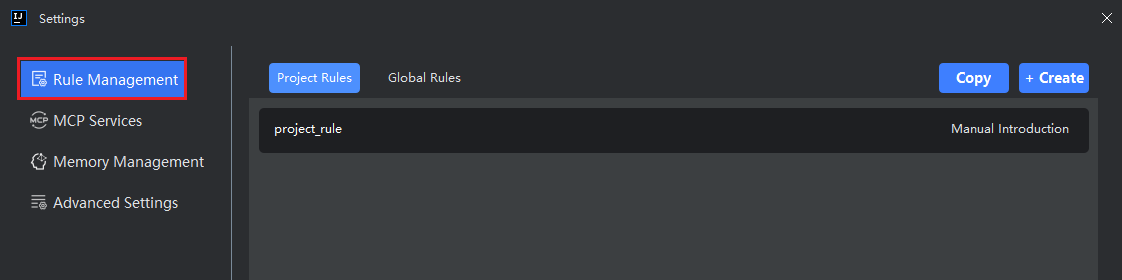
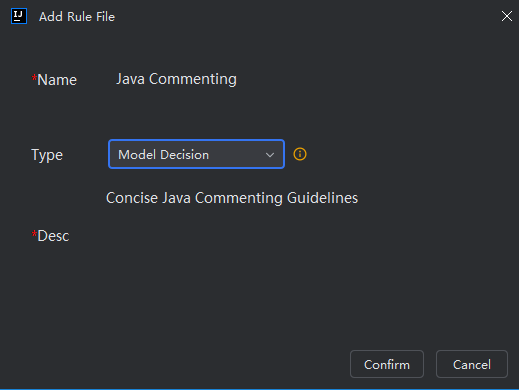
- Enter a rule name, select "Model Decision" as the type, and provide a clear, detailed description of the rule’s purpose and content. Then click "OK".
Rules are saved in Markdown format:
- Project rules → stored in
.feisuan/rules/ - Global rules → location not displayed
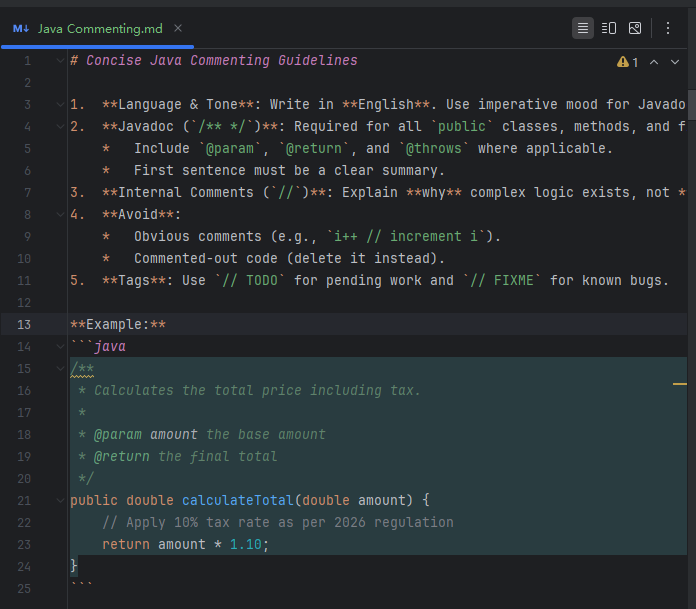
- In the rule list, click the rule entry. The Markdown file opens in the editor. Close the preview and directly edit the rule content, then save.

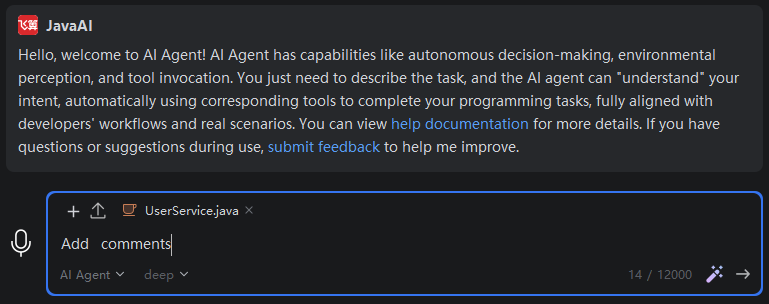
- In Smart Agent mode, select a file and enter your request.
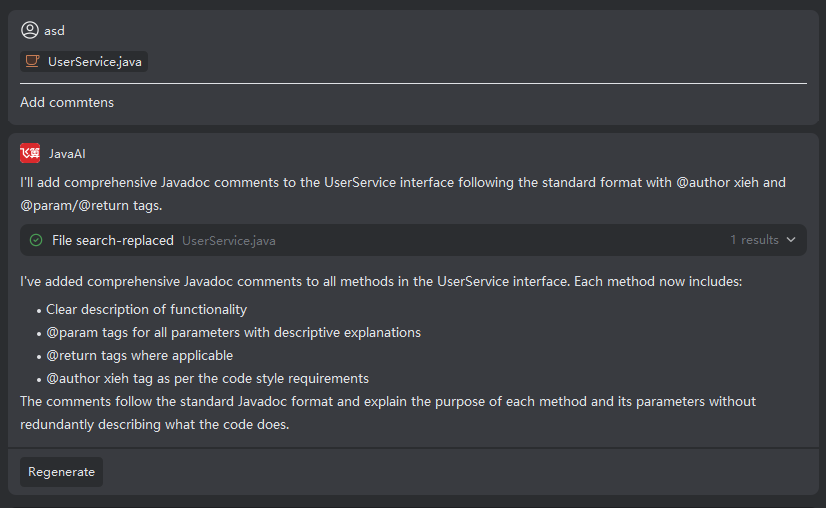
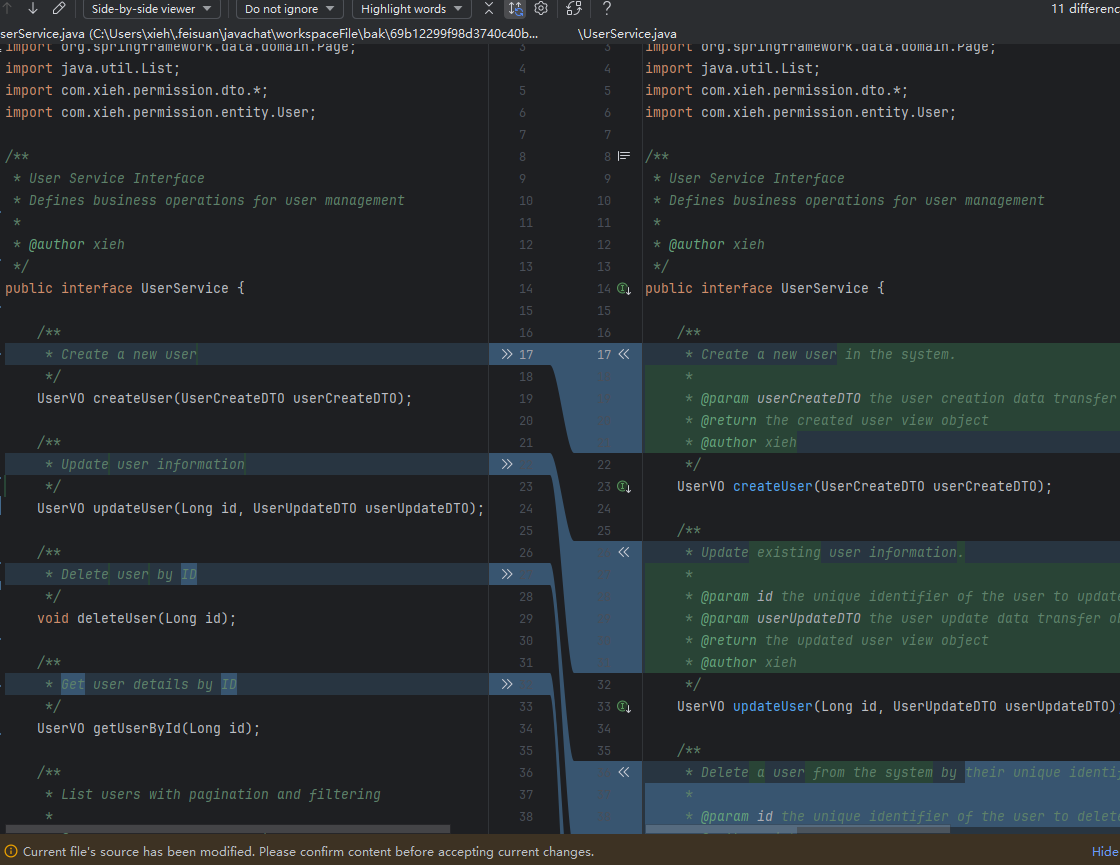
- If the model detects a relevant rule, it will autonomously apply it. After generation, verify that the output conforms to your rule—this confirms the rule is working.
Always Active
- Enter a rule name, select "Always Active", then click "OK".
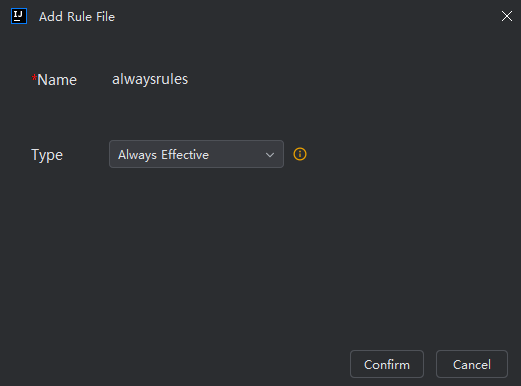
- Edit the rule content and save the file.
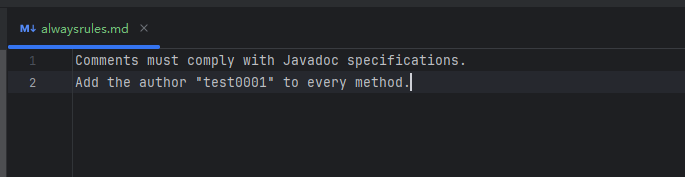
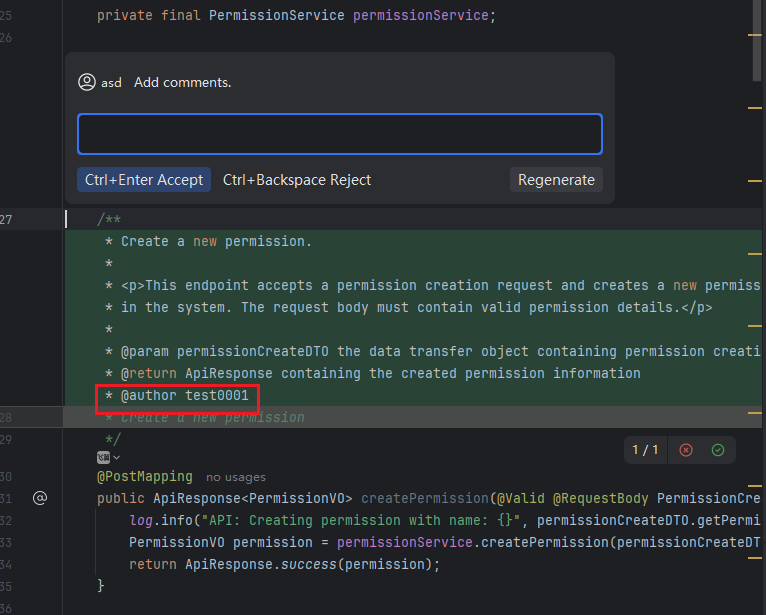
- The rule takes effect immediately in both Smart Chat and Inline Chat. Submit a request via Inline Chat and confirm the response follows the rule.
Manual Import
- Enter a rule name, select "Manual Import", then click "OK".
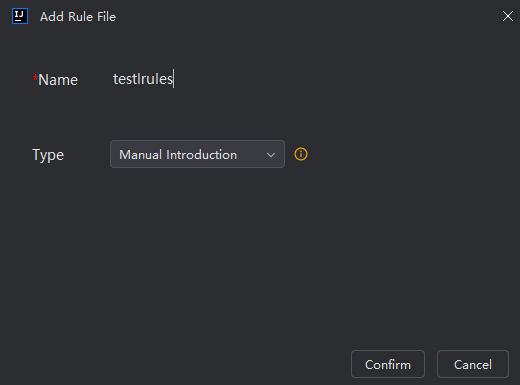
- Edit and save the rule content.
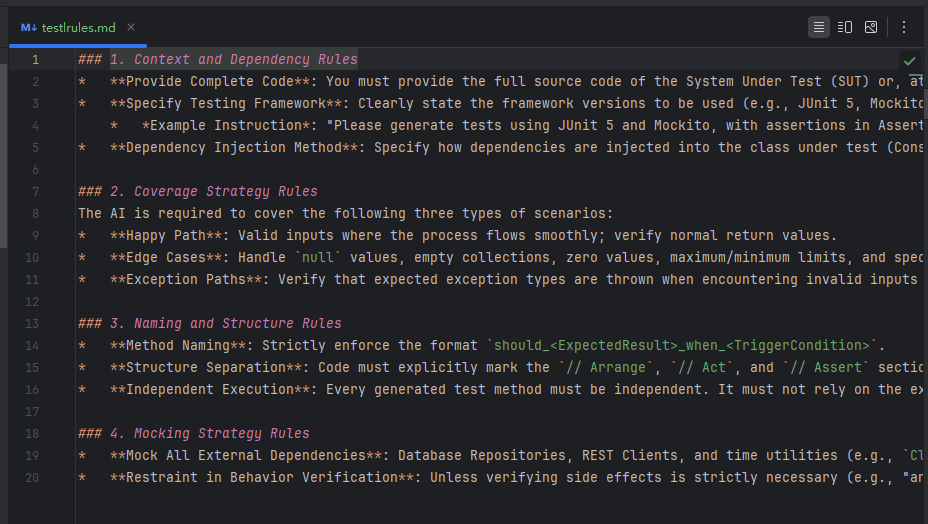
- In the Smart Chat input area, either:
- Click "Attach Context", or
- Type
#, select "Rule", and choose your manual rule.
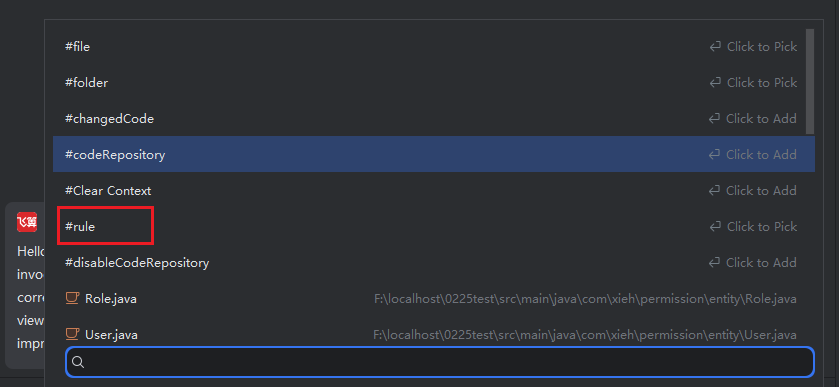
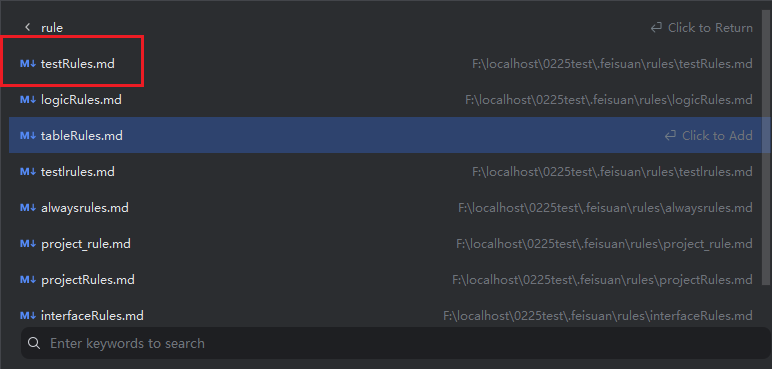
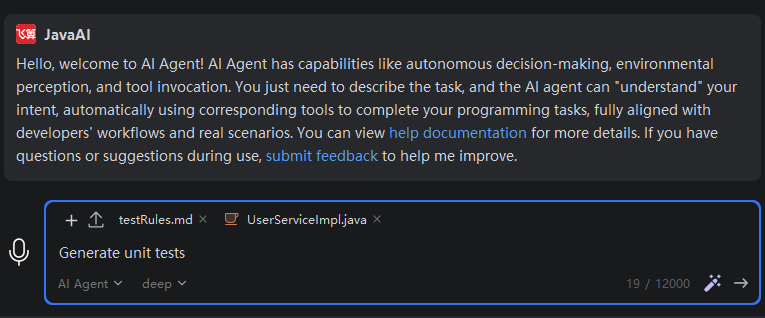
- Enter your request. The generated output will follow the manually selected rule.
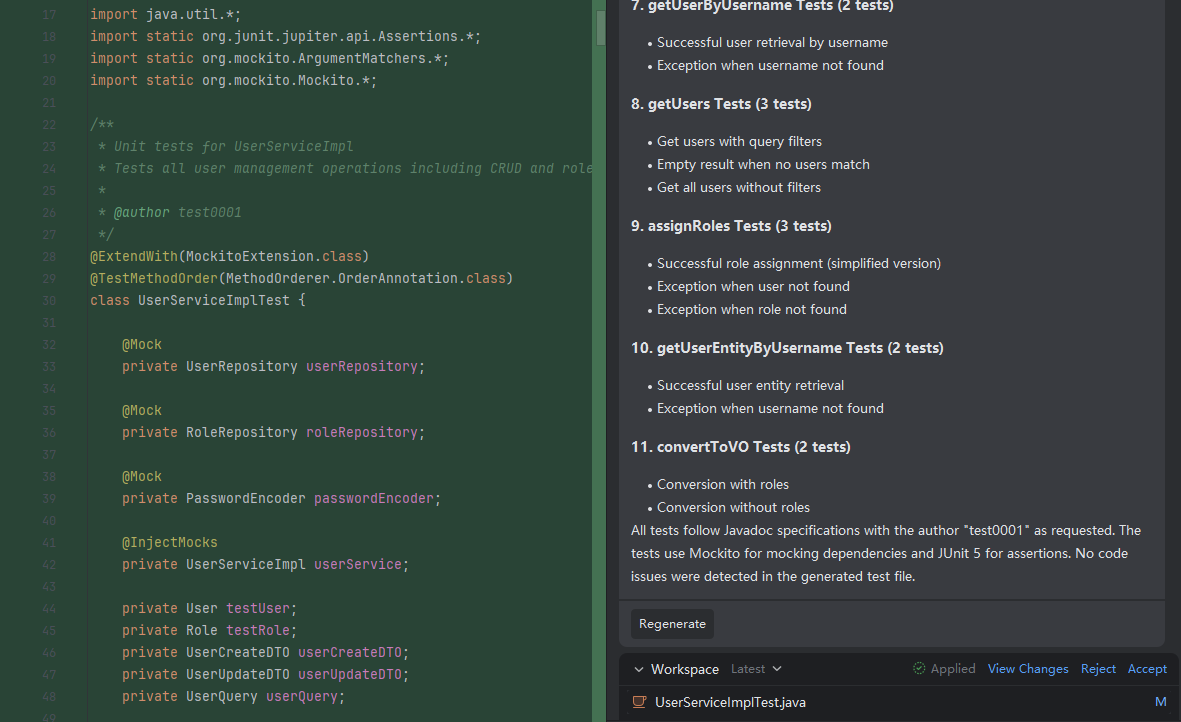
File-Specific
- Rules of this type are automatically applied only when the active file matches the specified file pattern (e.g.,
*.java,src/main/resources/*.properties,**/service/*.ts). - No manual activation is needed—the system checks the file path/name at runtime and applies matching rules silently.
- Ideal for enforcing language- or layer-specific standards (e.g., DAO layer naming in Java, React component structure in TSX).