
Inline Conversation
Introduction
The inline conversation feature supports initiating intelligent dialogues directly within the code editing area. Simply select a code snippet or trigger the inline conversation window at the cursor position, input your requirements, and Feisuo JavaAI will automatically complete code modifications based on the current code content, context, and your intentions. The results are instantly displayed in the current workspace. You can preview changes immediately, quickly optimize code or develop features, significantly enhancing development efficiency and coding experience.
Opening the Conversation Window
Feisuo JavaAI offers two ways to open the conversation window:

- Use a shortcut key to directly invoke the conversation window; if there's a conflict with the shortcut, you can change it directly.
- In a code file, after selecting a piece of code, click on the Feisuo icon in front of the code to open the inline conversation window.
| Keyboard Operation | Windows | macOS |
|---|---|---|
| Open Conversation Window | Alt + D | ⌘ + D |
Selecting Conversation Modes
Feisuo JavaAI provides two conversation modes:
- Inline Editing: After entering a requirement description in the conversation window, press Enter. Feisuo JavaAI can modify the current code file based on the requirement, selected code snippet, and relevant context.
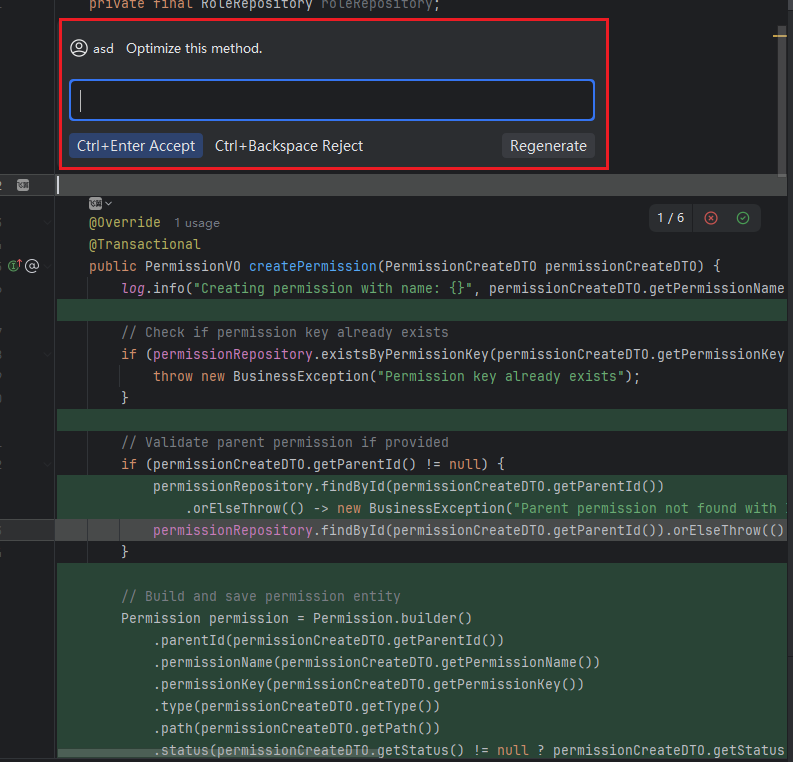
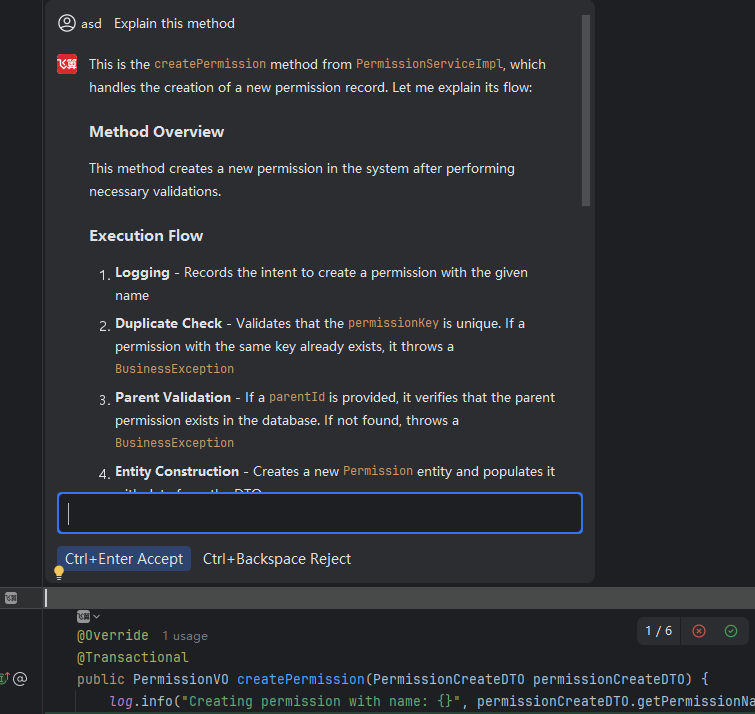
- Inline Q&A: After entering a requirement description in the conversation window, press Alt + Enter (⌘ + Enter). Feisuo JavaAI responds according to the requirement for questions and answers.
Selecting Contexts
- After invoking the window, input # followed by related contexts. Once selected, Feisuo JavaAI will consider your request and the relevant context to modify the current code file or answer your question.

Scenario Examples:
Example 1: Modify Code
- Select the code that needs modification, activate the conversation window, enter "Optimize this method," then press Enter.
- Review the generated content highlighted with a green background. If it meets your needs, accept it by clicking the green checkmark; otherwise, reject it with the red x. For multiple suggestions, accept or reject them individually or in batch from the conversation window.
Example 2: Add New Code
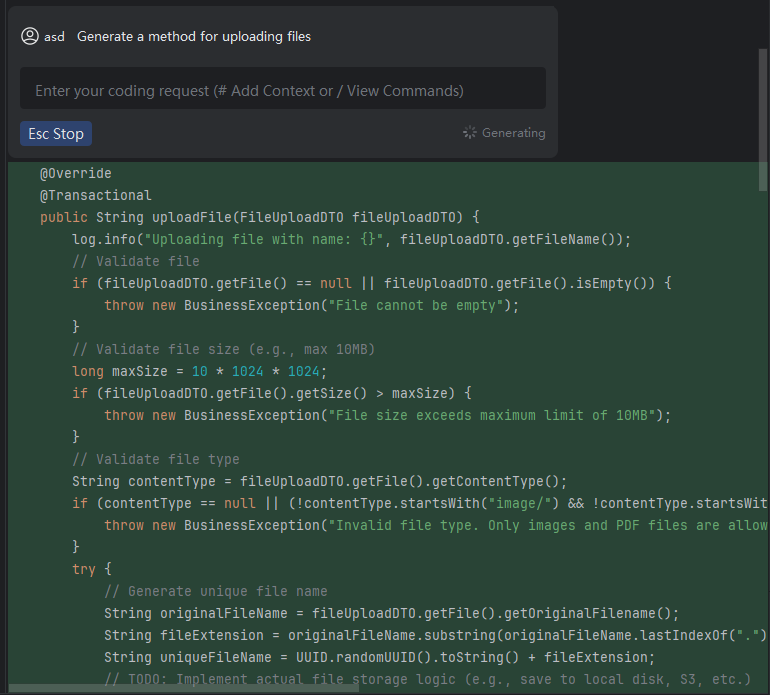
- Move the cursor to where you want to add new code, activate the conversation window, enter your requirements, then press Enter.
- Review the generated content highlighted with a green background. Accept it if it meets your needs by clicking the green checkmark; otherwise, reject it with the red x. You can also accept or reject suggestions in batch from the conversation window.
Example 3: Q&A
- Select the code you wish to inquire about, activate the conversation window, enter your question, then press Alt+Enter.
- Review the provided answer.