Execute Terminal Commands
Introduction
The intelligent agent will judge whether to execute terminal commands to obtain results based on the context content. When needed, it will prompt to execute terminal commands, but whether the command is executed requires your confirmation. After confirmation, the command will be sent to the console for execution. If not needed, the current step will be skipped and subsequent tasks will continue. You can also add commands that do not require confirmation in settings. After adding, when these commands need to be executed later, the intelligent agent will execute them automatically.
Manual Execution
- When the current task needs to execute a command, it will display as shown in the figure, click "Execute".
Explanation: If this command does not require manual confirmation subsequently, you can check "Automatically execute this command" on the right side, and the system will automatically add this command to advanced settings.
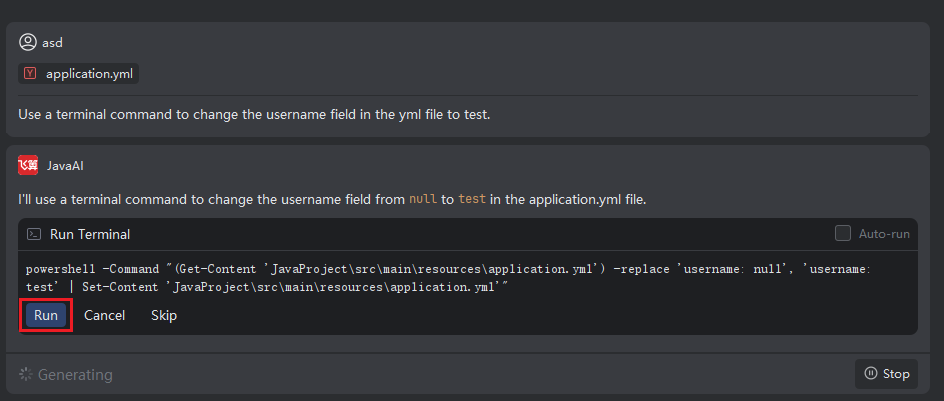
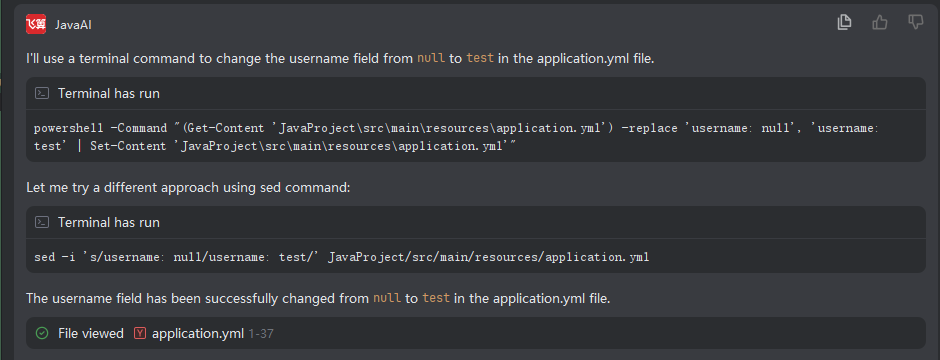
- The intelligent agent will send terminal commands to the console for execution.

- Obtain the output result of the terminal command.
Set Automatic Execution Commands
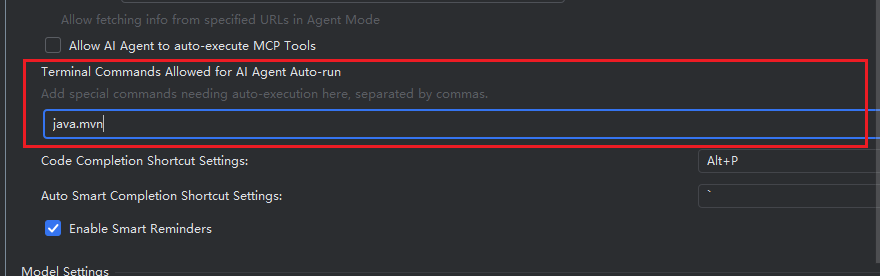
- Click "Advanced Settings", in the intelligent session settings, enter commands that allow the agent to execute automatically. Subsequently, for related commands, the intelligent agent will automatically execute in the terminal without confirmation.
Explanation: These entered commands are not complete commands, but commands that start with what keyword, such as java. Subsequent commands starting with java will be executed automatically
- In the command execution box, after checking the "Auto-execute" button, terminal commands in this session will be executed automatically. This may pose risks, so please check with caution.
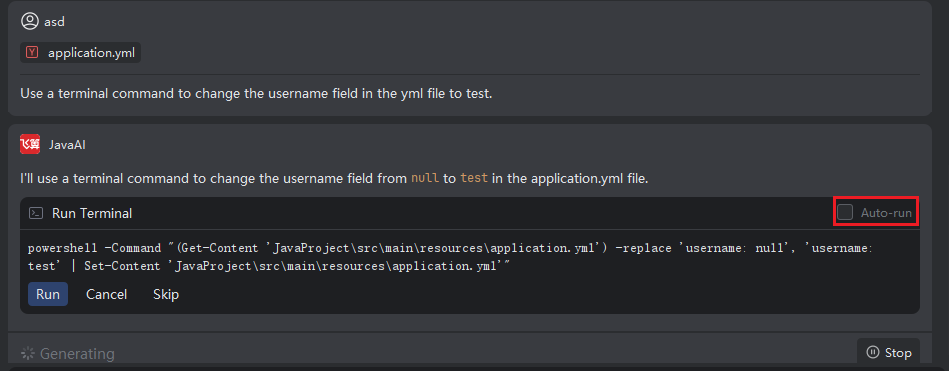

Manual Confirmation
- When confirming the execution of a terminal command, a "Manual Confirmation" button will appear. Clicking this button marks the command as manually confirmed and executed; the system will then skip executing this command and proceed with the subsequent workflow.
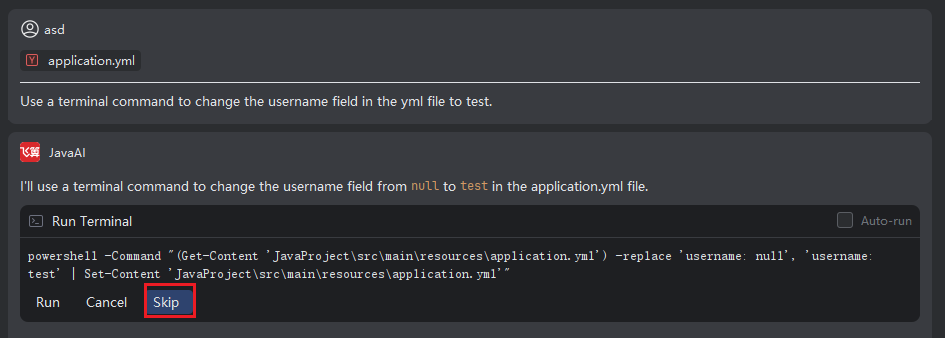
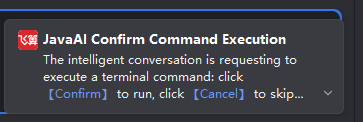
Terminal Command Pending Execution Alert
- If the current session task requires executing a terminal command while you are not focused on the session window, a reminder will pop up. This alert notifies you that a terminal command is pending and requires your action to prevent blocking the task completion.
Note: You can take quick action directly from the alert,Click "Confirm" to execute the terminal command.Click "Cancel" to skip executing the command.