
Version Revert
Introduction
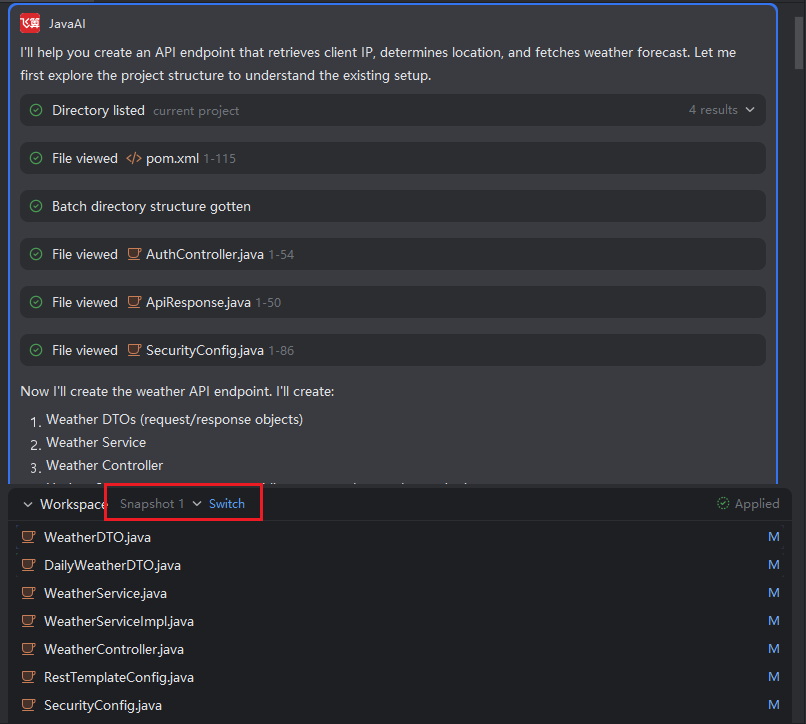
To review or revert to an earlier state of your code changes, you can use the snapshot history feature. By clicking the dropdown arrow, you can view all code change snapshots generated during the current task. Selecting a snapshot allows you to inspect its associated files and, if needed, switch back to that version for further iteration.
⚠️ Important: If you switch to an older snapshot and then submit a new request or make modifications, any previously accepted changes from newer snapshots will be discarded. To return to the most recent state, you can always switch back to the "Latest" snapshot.
How to Revert to an Earlier Snapshot
- From the snapshot dropdown, select the desired historical snapshot.
- Click "Switch" to confirm the rollback.
- The system will load the files as they existed in that snapshot.
- Any subsequent questions or edits will be based on the context of that earlier state.
Behavior & Implications
- Modified files: Changes made in snapshots after the selected one will be reverted to their state at the time of the chosen snapshot.
- Newly added files: Files created in later snapshots will not be automatically deleted, even when rolling back. They remain in the project unless manually removed.
Example:
- Snapshot 0: Adds
FileA.java→ accepted. - Snapshot 1: Modifies
Service.java→ accepted. - Snapshot 2: Adds
FileB.java→ accepted.
If you switch back to Snapshot 0:
Service.javais reverted to its original (pre-Snapshot 1) content.FileA.javaremains (created in Snapshot 0).FileB.javastill exists (created in Snapshot 2), even though it’s “future” relative to Snapshot 0.
💡 To restore the absolute latest state—including all accepted changes—switch to the "Latest" snapshot.