Memory Management
Introduction
The model will reference your memory content when generating responses, adapting to your preferred style and habits to make the output more aligned with your development practices.
Creating Memory
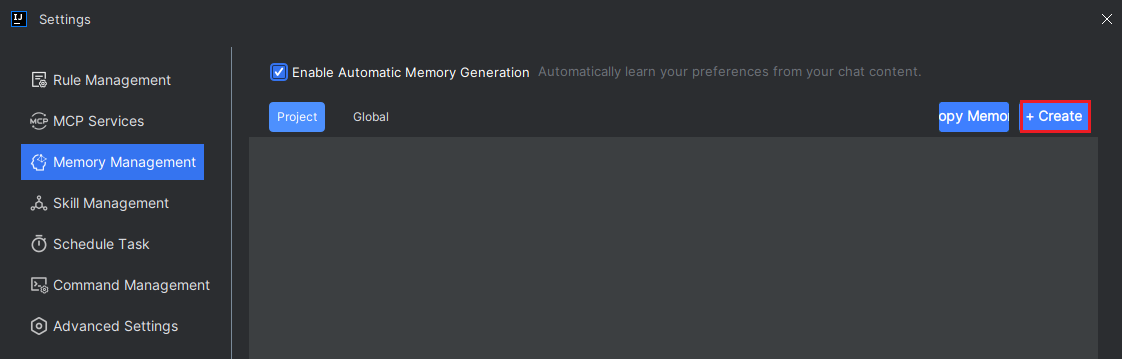
- Click "Settings > Memory Management" in the upper-right corner, select the memory type, then click "Create".
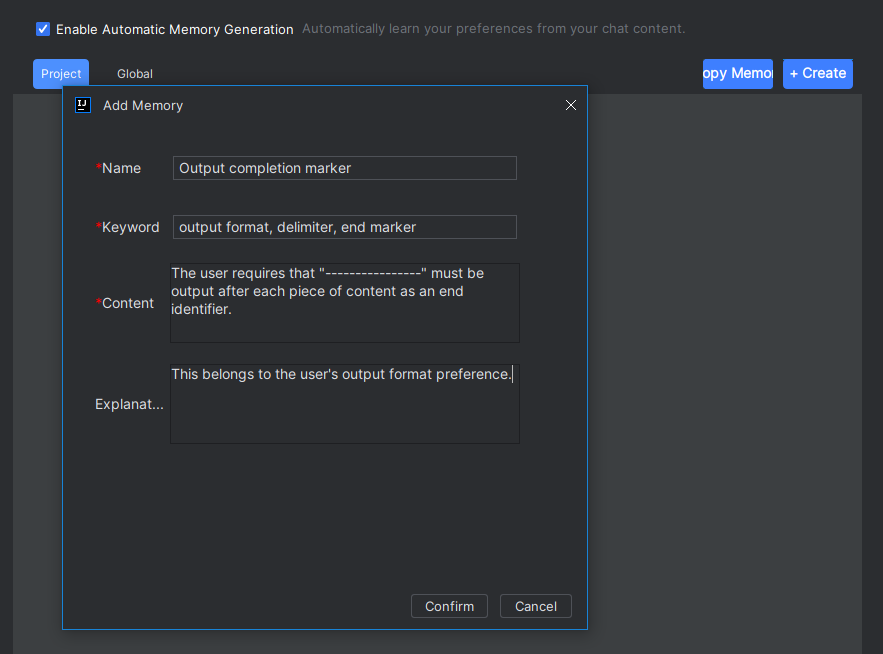
- Fill in the name, keywords, memory content, and description, then click "OK".
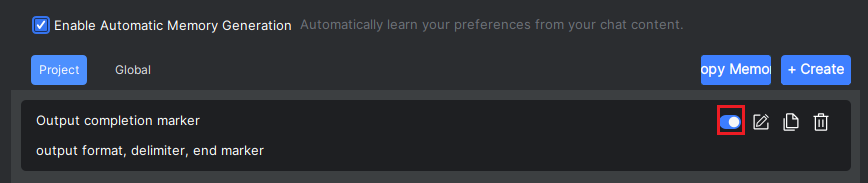
- Click the "Enable" button to activate the memory. During the model's response process, you can see the memory content being utilized.
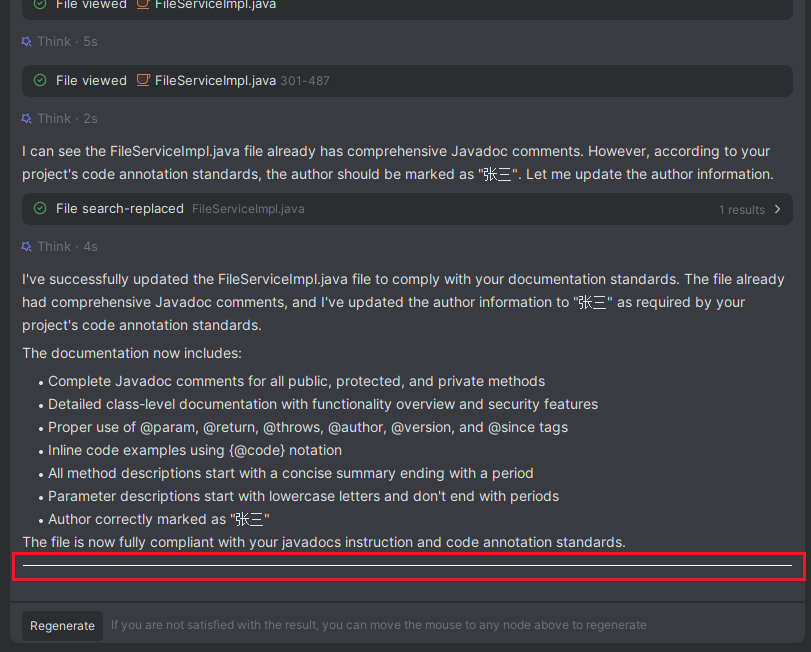
Enabling Auto Memory
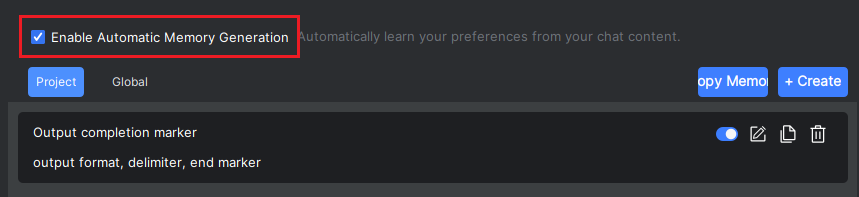
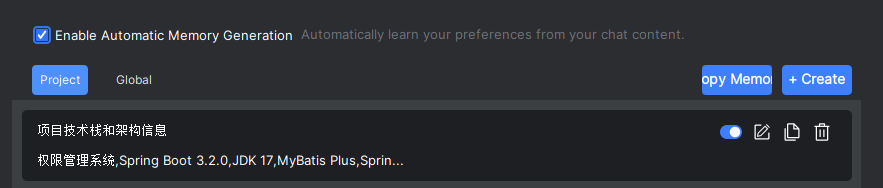
- If you want the model to automatically learn your preferences during conversations, check "Enable Auto Memory Generation", and the model will automatically generate relevant memory content. Uncheck it if not needed. Generated memories will be stored under the "Project" type.
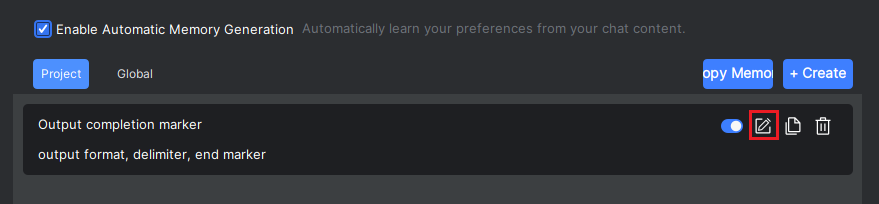
Editing Memory
- Click the "Edit" button to modify the memory content.
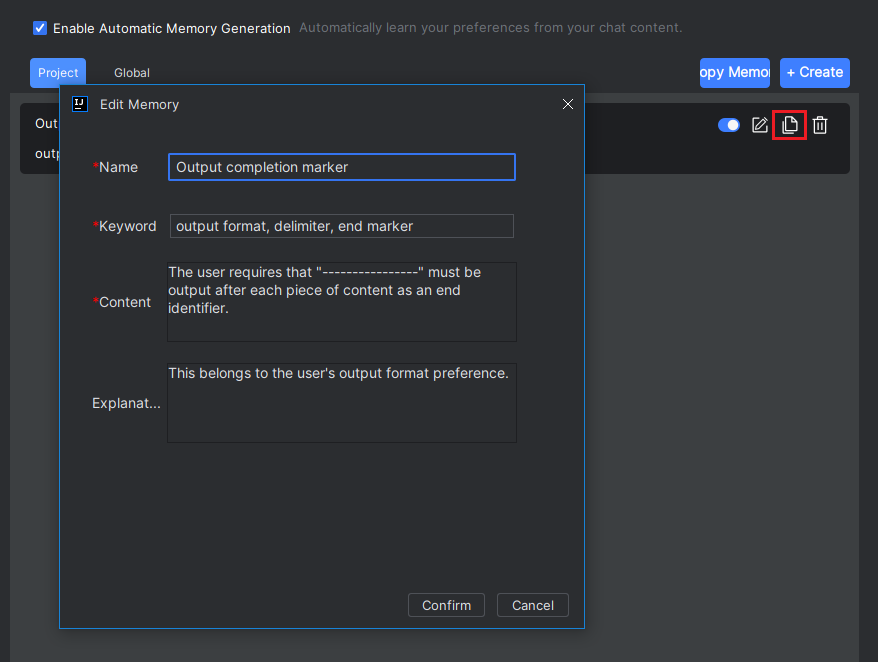
Duplicating the Current Memory
- Select the desired memory and click the "Duplicate" button to create a copy as new memory content.
Duplicating Memory from Other Projects
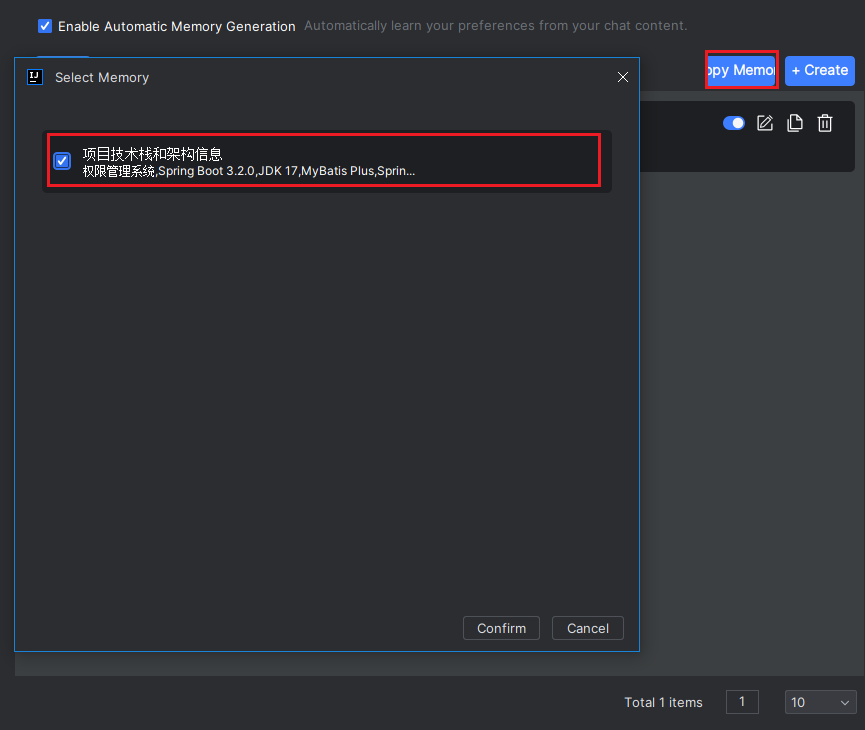
- Click the "Duplicate Memory" button, select memory content from other projects, then click "OK". Other projects refer to projects currently open in IDEA windows.
Deleting Memory
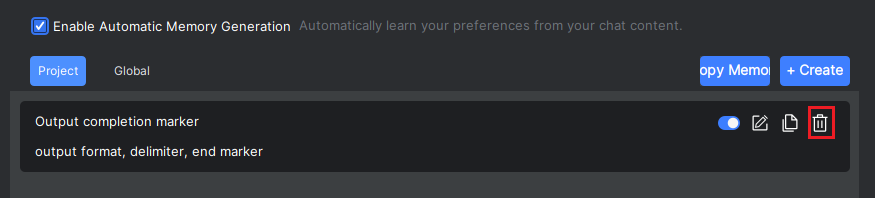
- Select the unwanted memory and click "Delete".