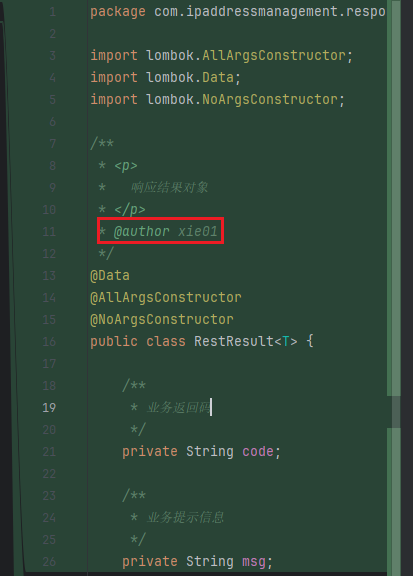
Associate Project _ Source Code Rules
Introduction
When associating a project, you can customize the rules for generating source code, allowing this requirement to generate the code you need according to the custom rule format.
Associate Project _ Source Code Rules
- Click "Rules", then click "Add Rule File" to create a new rule.
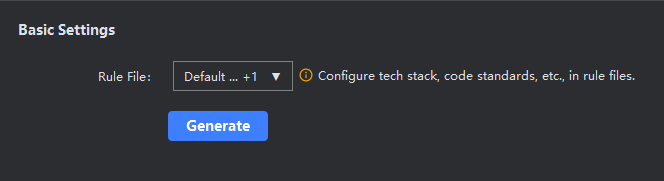
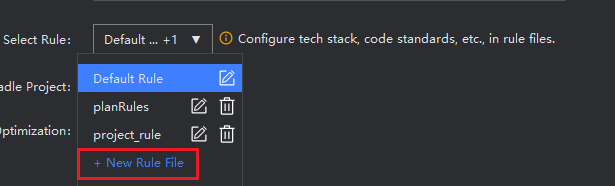
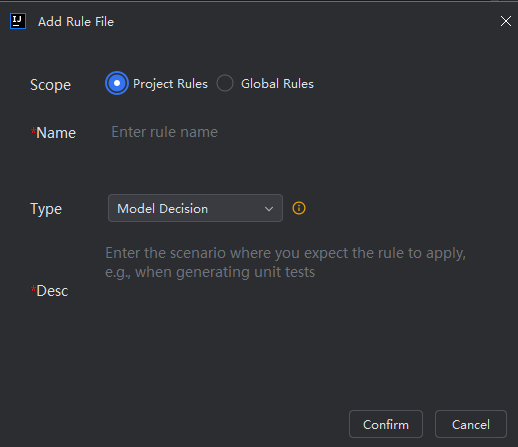
- Select scope, enter rule name, select type, and input other field information.
Description:
- Scope: Project rules are effective only for this project, with rule files stored under .feisuan/rule. Global rules apply to all projects.
- Model Decision: The model autonomously decides whether to use this rule based on the rule description and requirements, without user selection. Note that rule effectiveness depends on the description content, so please describe clearly.
- Always Effective: This rule will always take effect, meaning the rule will be applied every time a request is made to generate corresponding content, without user selection.
- Effective for Specified Files: The rule will automatically retrieve files that match the user-specified file matching patterns (such as .java, src/*/.ts) and apply the rule, without user selection.
- Manual Import: Manually select the rule file to take effect from the dropdown list.
- Customize and edit your source code generation rules in the editing area.
Description: For rule content and style, please refer to the information in the default template.
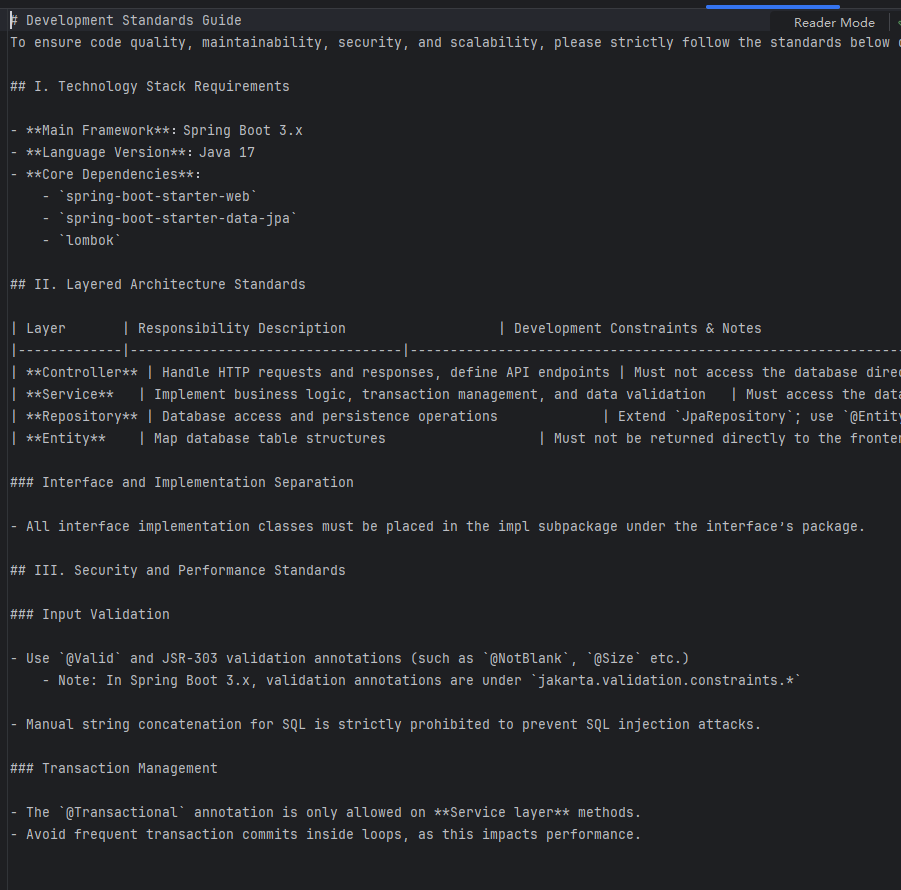
- Then select the custom rules, click "Generate Source Code", wait for the source code files to be generated, then click on the completed source code files to see that the source code was generated according to the custom rules.
Description: The model has uncertainty and does not guarantee that all content will follow the rules. If you find that it did not take effect, you need to readjust the rule description. At the same time, multiple rule files can be selected, allowing you to select multiple different rule files for constraints simultaneously.