
MCP Usage Common Issues
Service Addition or Installation Exceptions
1. Missing Environment Required for the npx Command
Error Message: ‘npx.cmd’ is not recognized as an internal or external command, operable program or batch file.
Solution: Download and install Node.js. You can download version v19 or higher from the Node.js official website, and ensure that the npm version is v8 or higher. Older versions may cause tool invocation to fail. After installation, configure the environment variables properly. Verify the setup by entering node -v in the command prompt.
2. Missing Environment Required for the uvx Command
Error Message: ‘uvx.cmd’ is not recognized as an internal or external command, operable program or batch file.
Solution: Download and install uv. uvx is a command-line tool provided by uv for quickly running Python scripts. You can go to the Python official website to download and install Python 3.8 or a higher version. After installation, verify the setup by running the command uv --version.
3. Installation Failed
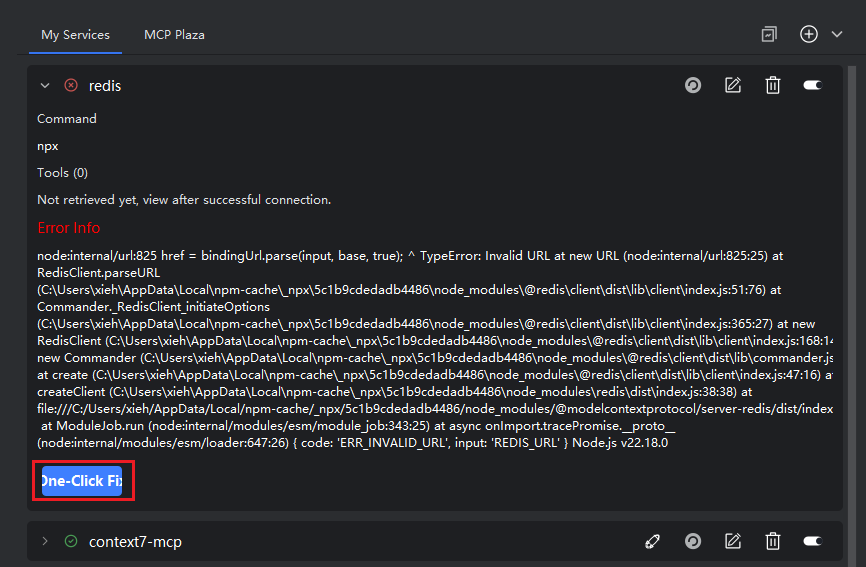
Error Message: Installation failed with an error.
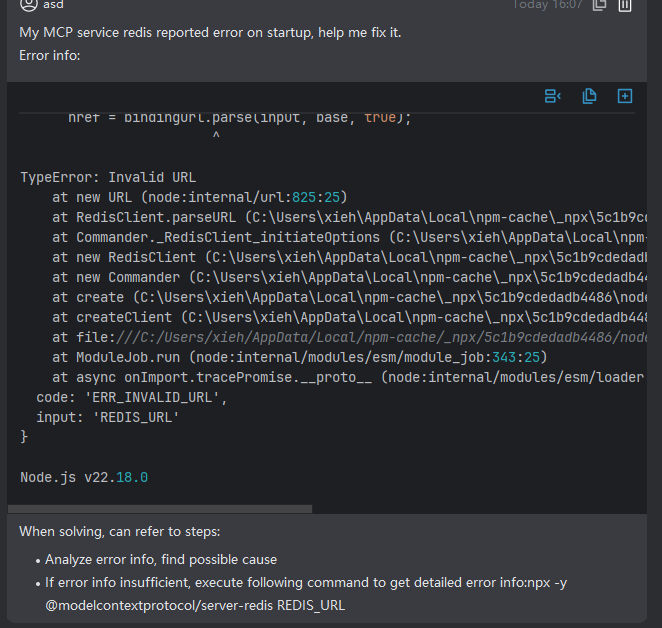
Solution: After the installation fails, expand the details, then click “One-Click Fix” to jump to the Smart Chat interface, select “Smart Q&A” mode, send your question, and follow the suggested solution to adjust your configuration and try again.
4. Failed to Initialize MCP Client
Error Message: The error contains keywords such as: failed to initialize MCP client for XX: context deadline exceeded
Possible Causes (including but not limited to):
Incorrect service parameter configuration: The MCP service parameters may be misconfigured or otherwise invalid, affecting service initialization.
Network security restrictions: Internal corporate security components may be intercepting the connection, causing the MCP service initialization to fail.
Troubleshooting Steps: First, copy the full error message, then open a terminal and run the relevant command to analyze and fix based on the detailed error output. If the issue is due to incorrect configuration parameters, edit the corresponding service configuration and retry. If the Node.js process is being blocked by security software, follow the interception alert to authorize or whitelist the Node.js process or related executable files.
Tool Usage Issues
- Incorrect environment variables or parameters causing tool execution failure
Note: If an MCP tool invocation fails or returns unexpected results, we recommend first expanding the tool invocation details to view the specific error message and perform analysis accordingly. For certain MCP services (such as Mastergo and Figma), critical authentication information like API_KEY or TOKEN is included in the “arguments (args)” field. Therefore, even after installing via the MCP Marketplace, you still need to manually configure these parameters. Please adjust based on the error message and try again.
Solution: Locate the corresponding MCP service and click “Edit”. In the service configuration, check the arguments (args) section. Replace the variable content that needs to be updated or filled in, ensuring it is accurate. Reconnect the service and then attempt to invoke the tool again.
- Model unable to invoke MCP tools normally
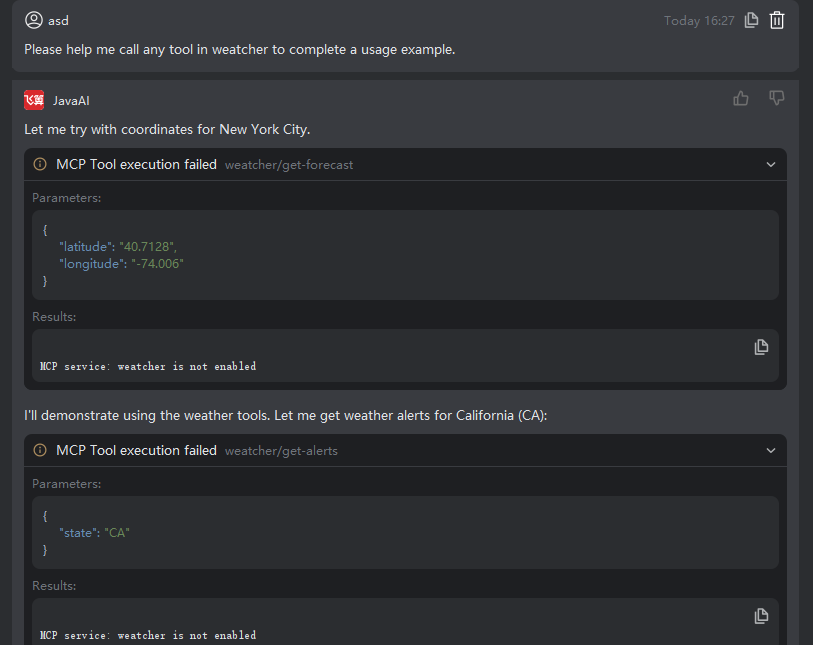
Solution: First, confirm in “My Services” that the MCP service is in a connected or enabled state. If the connection is interrupted, click the “Refresh” button to reconnect, or enable the service. Secondly, ensure that the Smart Chat session is in “Smart Agent” mode—MCP tools cannot be invoked in “Smart Q&A” or “Java Chat” mode.