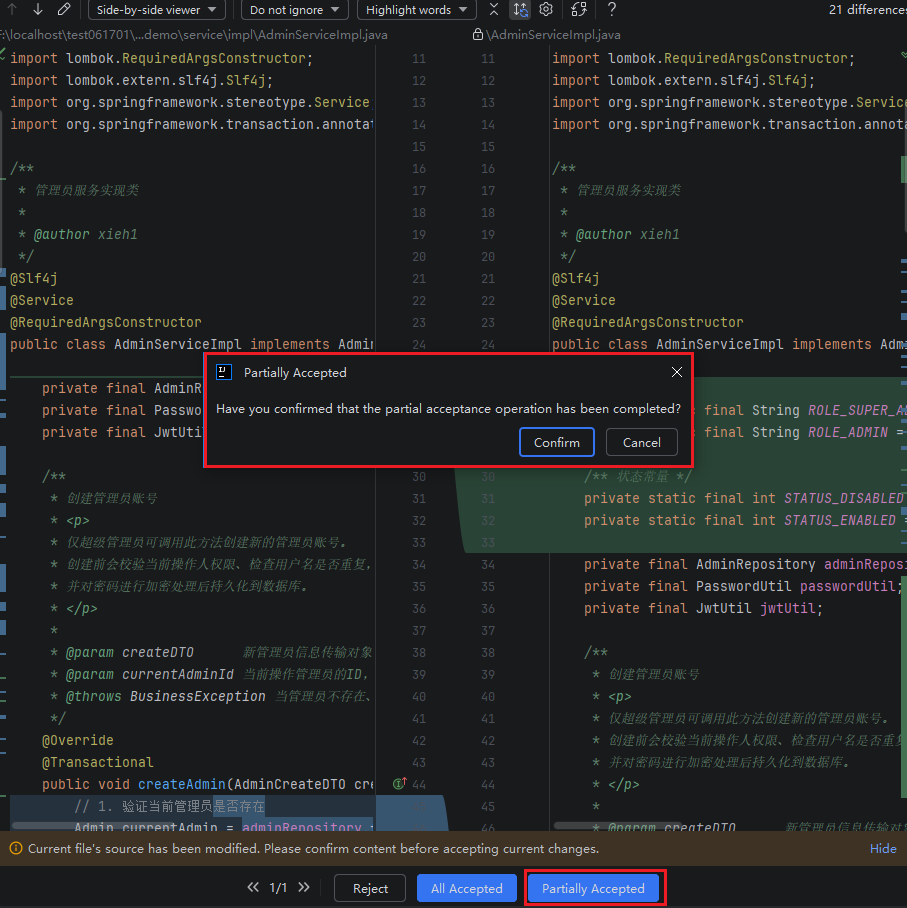
Partial Accept
Introduction
Partial operations allow you to accept or reject modifications for specific parts of a file, rather than processing the entire file. This means you have precise control over which changes are included in the final version. Please note that after partially accepting or rejecting individual changes, you still need to use the button at the bottom to confirm whether to accept or reject the file as a whole.
Partial Accept and Reject
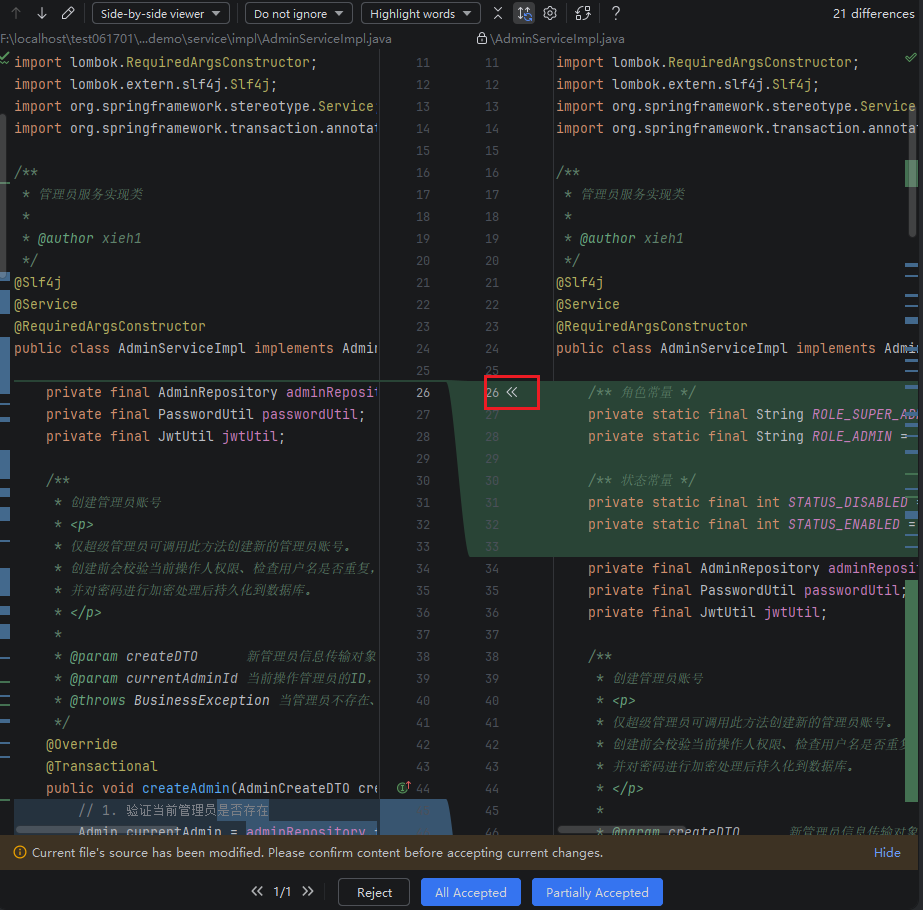
- After opening a file in the workspace, review the changes in the central preview area. The left side shows the current content of the file, and the right side shows the modified content.
- Select the specific code you want to keep based on your needs, and click the left arrow "<<" in the middle to accept the new code. If you do not wish to accept it, no action is required.
Notes:
- Gray background indicates deleted code blocks.
- Green background indicates added code blocks.
- After partially accepting, you must click the "Partially Accepted" button to save the current modifications and update the file's status.
- After partially accepting, do not click the "All Accepted" or "Reject" buttons, as doing so will invalidate the partially accepted code.
- Click the "Partially Accepted" button to save the accepted content.