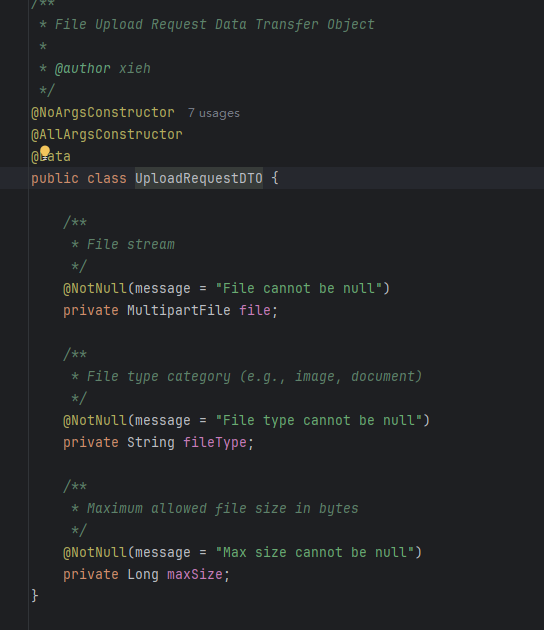
Associated Context
Introduction
When creating or linking a project, you can select corresponding files as context. When generating source code, the model will read the content of the context and produce code that better aligns with your requirements.
Associating Context
- Select the file(s) to be used as context.
- Enter your request.
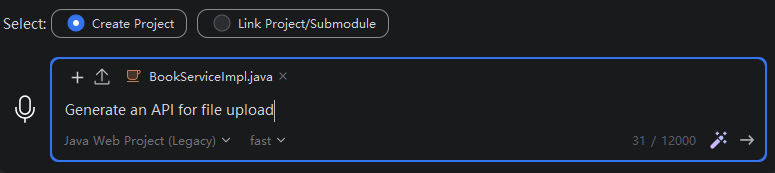
- The source code file is successfully generated.
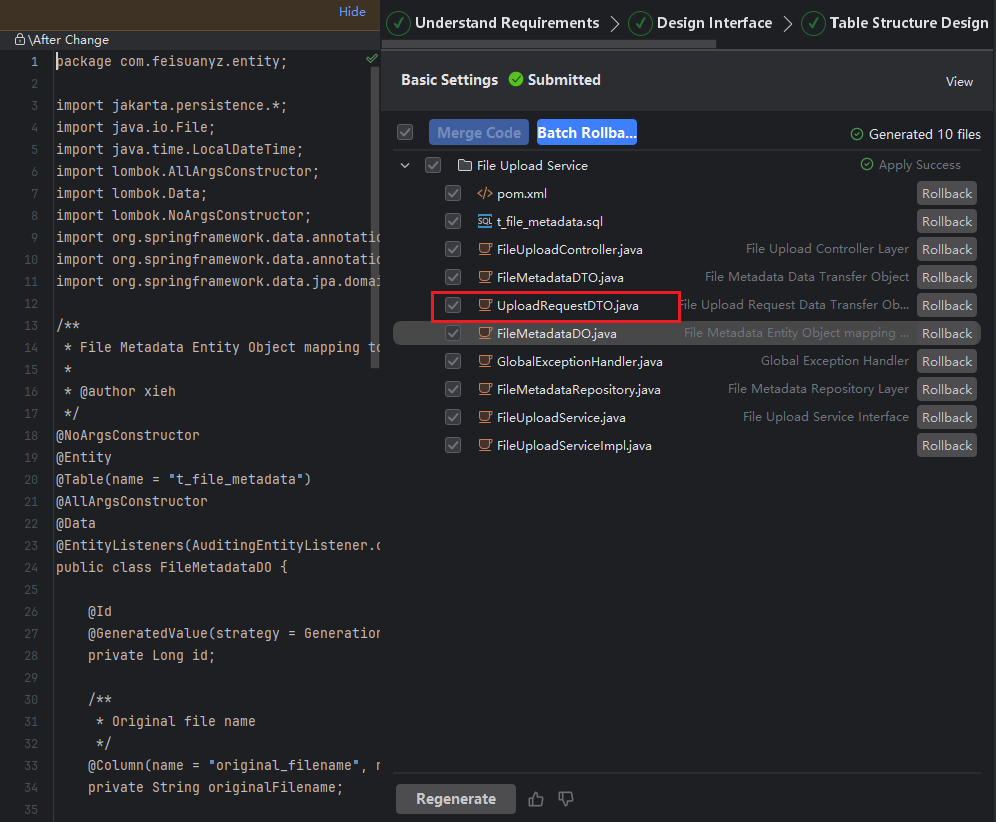
- Open or merge the project to view the associated context content.
Note: After associating context, the generated source code will reference the context content during generation. If you choose to create a new project, the associated context files will be included in the new project after it is opened. If the model extends the context with new content, the new content will be merged into the context.